How to Edit Text in NotebookLM Generated Slides — 2 Methods Compared
NotebookLM can generate impressive slide-style pages from your source material, but many users still run into the same practical issue: how do you actually edit the wording afterward inside PowerPoint?
This guide focuses on the 2 most practical options: keep regenerating with AI, or convert the result into a PPTX with editable text.
Why Isn't NotebookLM Output Easy to Edit?
NotebookLM can now adjust elements to some extent, but that is still different from having a standard editable PPTX where you can freely click into each text box and rewrite the content.
If your goal is only to fix a typo, update a sentence, or replace a few numbers, you often still need to:
- write more specific prompts to describe exactly what should change
- retry multiple times so the AI does not also change layout, hierarchy, or styling
- accept that the final output still may not be a normal editable PowerPoint file
So if your main goal is text editing, choosing the right workflow matters more than it first seems.
Method 1: Keep Regenerating with AI Slide Tools
You can continue adjusting elements in NotebookLM itself, or move the content into tools like Gamma, Beautiful.ai, or ChatGPT-based slide workflows to generate a new version.
Pros: Fast, flexible, and useful when you want to change structure, style, or the overall direction of the presentation.
Cons: If you only want to fix wording, the workflow gets awkward. You often need more complex prompts, and the AI may also change layout or visuals along the way. Most importantly, the generated result still usually is not a standard PPTX where you can freely double-click and edit text in PowerPoint.
Method 2: Convert with 2pptx Online (Recommended)
2pptx.com is a free online tool designed to convert image-based slides into PPTX files with a "background layer + editable text layer" structure. The goal is simple: preserve the current look while making the text editable.
How It Works
- OCR Text Detection — Detects text position, content, size, and color.
- AI Background Inpainting — Removes text from the background and restores the covered area as much as possible.
- Text Box Rebuilding — Recreates the detected text as PowerPoint text boxes.
- Final Output — Exports a standard PPTX with the repaired background and editable text boxes on top.
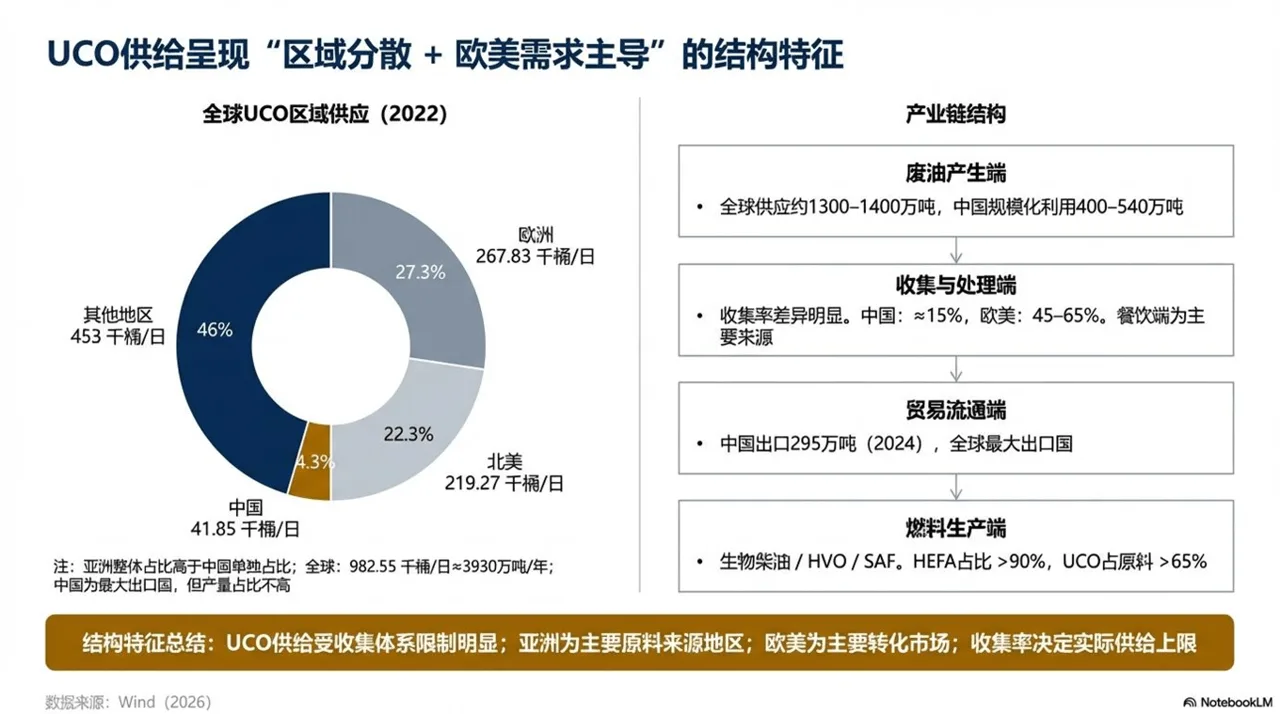
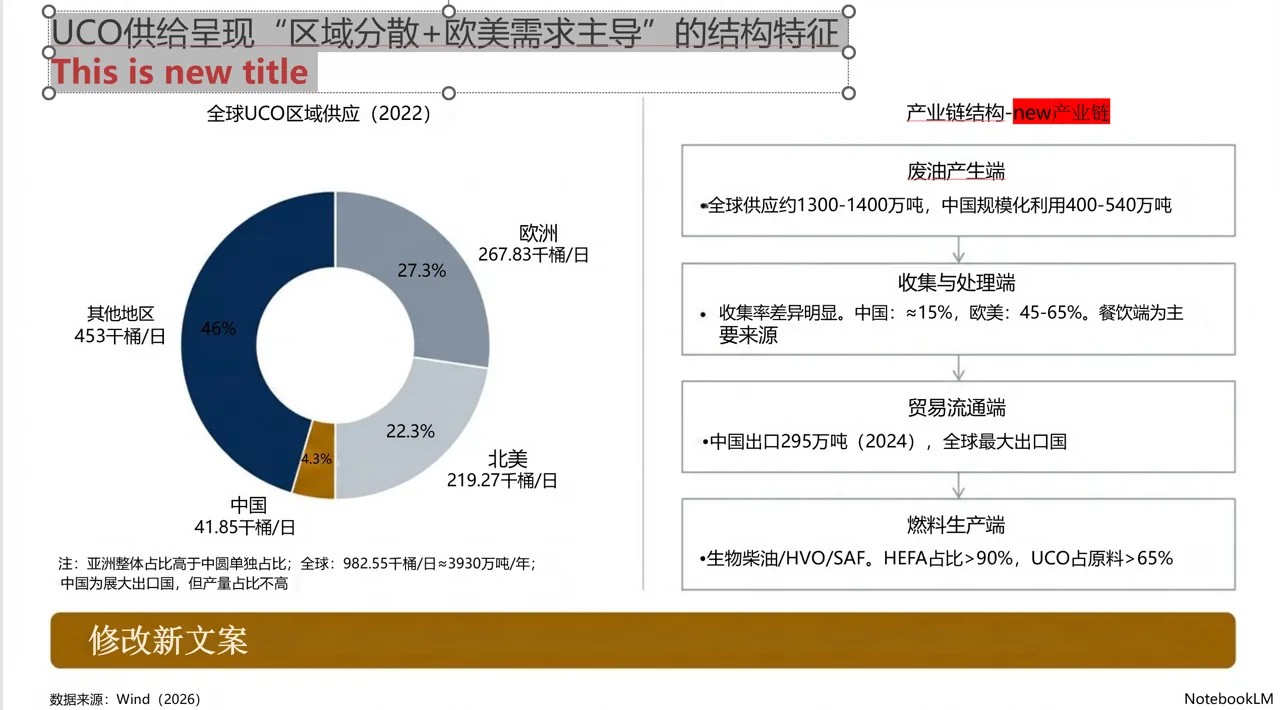
How to Use
- Go to 2pptx.com
- Upload your PDF or image file (supports PDF, PNG, JPG; max 20MB)
- The system processes automatically, usually within a few minutes
- Save your pickup code and download the PPTX when processing is complete
- Open it in PowerPoint and double-click any text to edit it
Pros: Keeps the original visual layout; text becomes editable; ideal for translation, wording changes, typo fixes, and number updates.
Cons: Charts, icons, and other non-text elements remain part of the background image and cannot be edited individually.
Comparison of Both Methods
| AI Regeneration | 2pptx Conversion | |
|---|---|---|
| Preserves the current visual layout | Usually unstable | Better |
| Good for fixing wording quickly | Prompt-dependent | Yes |
| Freely editable text in PowerPoint | Usually no | Yes |
| Good for changing overall style | Yes | No |
| Workflow cost | Requires repeated prompt tuning | Upload and convert |
Summary
If your goal is to change the structure, style, or overall direction, continuing with AI regeneration is more flexible.
If your goal is to keep the current NotebookLM look but make the text editable inside PowerPoint, 2pptx is the more direct workflow.