How to Add Alt Text to a Picture in a Converted PowerPoint
Use a packing-station slide to learn how to add alt text to one separated picture in PowerPoint and check that it stays with the picture after saving.
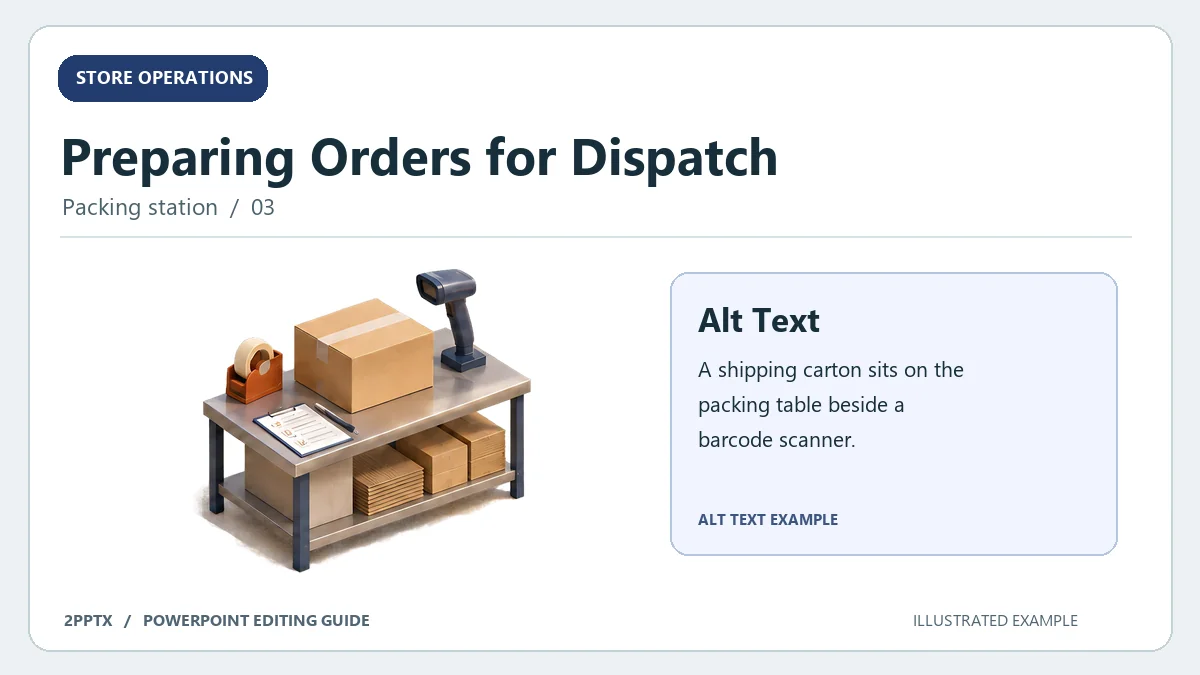
Select the packing table on its own
After using 2pptx Full-element conversion to separate the picture, open the PPTX and click the packing table. If the selection box surrounds the whole slide, open the Selection Pane and look for the individual picture. Add the description there and leave the neighboring title alone.
Describe what the picture shows
Right-click the picture and choose View Alt Text or Edit Alt Text. Write what the reader needs from the picture: “A shipping carton sits on the packing table beside a barcode scanner.” If the visual is just a decorative border or accent, mark it as decorative.
Reopen the deck and select the same picture
Open its Alt Text pane again and check that your description is still there. To review the rest of the deck, use PowerPoint’s Accessibility Checker and check the slide reading order separately.
Reuse illustrations in another slide · Microsoft PowerPoint help