Make an Arrow Follow Its Flowchart Box in PowerPoint
Replace a static arrow on a converted slide with a native connector that stays attached when a box moves.
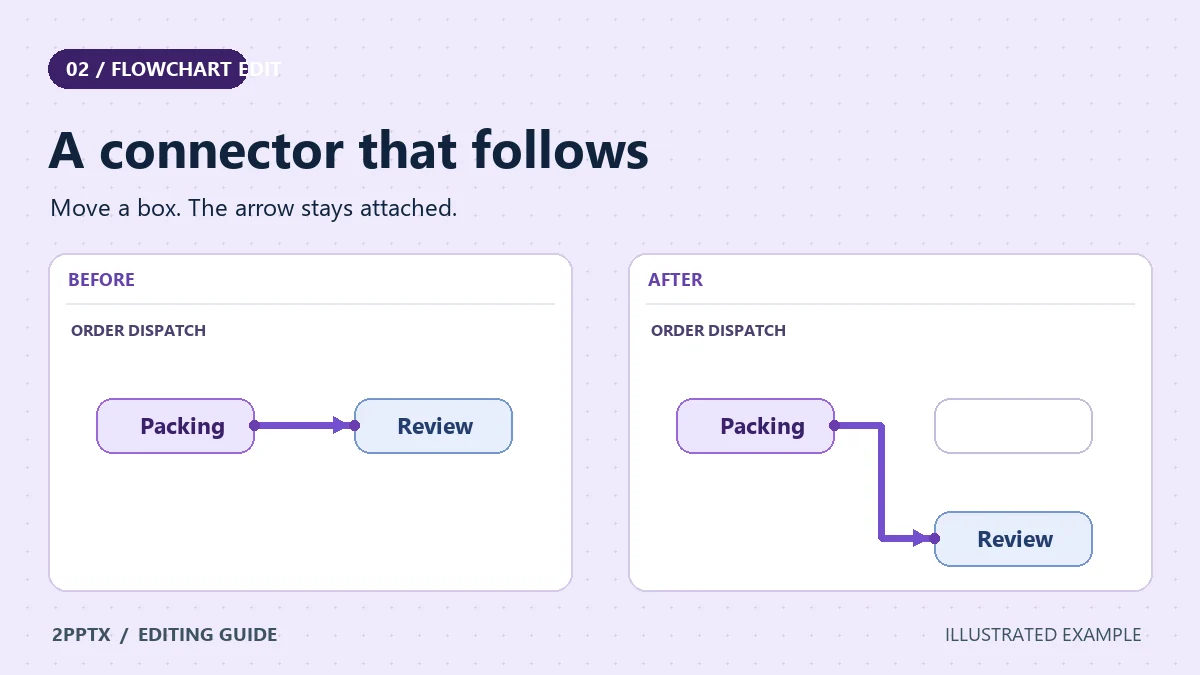
Find the arrow that needs replacing
Say you move Review from beside Packing to below it. If the arrow stays behind, it may be a separate picture. Full-element conversion can recover separate text and visuals, but you need a PowerPoint connector to make an arrow follow a box.
Connect native PowerPoint boxes
Work on a duplicate slide. If the two boxes are still pictures, redraw just those boxes with Insert → Shapes and copy the recovered labels into them. Leave the surrounding artwork alone. Choose a straight or elbow connector under Insert → Shapes → Lines. Attach each endpoint to a connection point on a box. Remove the old arrow from the duplicate after checking the new one.
Drag a box to test the connection
Move one box a short distance. If the arrow stays attached at the edge, the connector is working. If the arrow stays put, reattach that end to a connection point instead of lining it up by eye. Undo the test move if you want to keep the current layout.