How to edit text in a picture in PowerPoint

To edit text in a picture in PowerPoint, first check what you can select. If clicking the words selects the whole image, you can cover and retype a short correction, extract the words with OCR, or convert the page into editable text boxes. The same options work for scanned slides and screenshots. Choose based on how much text you need to change and whether you want to keep the page layout.
Scanned slides can support more than text edits
Non-text elements are generally transparent images; chart data, animations, and native vector paths are not automatically restored. See real Full-element results and delivery details →
If only some words cannot be selected, or the entire file is read-only, first check why PowerPoint text cannot be edited to confirm that the words are part of an image.
Start with your file
Try text editing with Standard conversionIf you cannot select the words in a PowerPoint picture, check whether the slide is a single image. For a small correction, rebuild the affected text area manually. For a full page, use OCR to create editable text boxes in a PPTX. 2pptx accepts PDF, PNG/JPG, and image-only PPTX files with one full-slide image per slide. Check spelling, fonts, and line breaks after conversion.
Three steps before you start editing
- Click the words. If PowerPoint selects the whole picture, there is no text box to edit. If it selects an existing text box, edit that directly.
- For one small correction, cover the old words with a shape and add a text box. This works best on a solid background; photos and gradients can show the patch.
- For several edits, upload the source for OCR conversion. Open the downloaded PPTX and check the recognized text, fonts, line breaks, and background cleanup on each page.
For standalone images, follow the screenshot-to-PowerPoint upload and ordering steps. If you only need the words, compare OCR extraction with editable PPTX conversion first.
What Are Scanned PowerPoint Slides? How to Tell?
Scanned PPT slides can look normal, but their structure is different. A normal slide stores text in text boxes. A scanned slide stores the entire page as one image, so the visible words are only pixels.
Common sources of scanned PPT slides include:
- Paper documents scanned and imported into PowerPoint
- Old presentations that were screenshotted and reassembled into a new file
- PDFs converted to PPT without OCR, where each page was simply inserted as an image
- Presentations received from others that were assembled from image files
How to check: Open the file in PowerPoint and try clicking on any text. If you cannot select a text box, or if clicking selects the entire page as one large image, it is a scanned PPT.
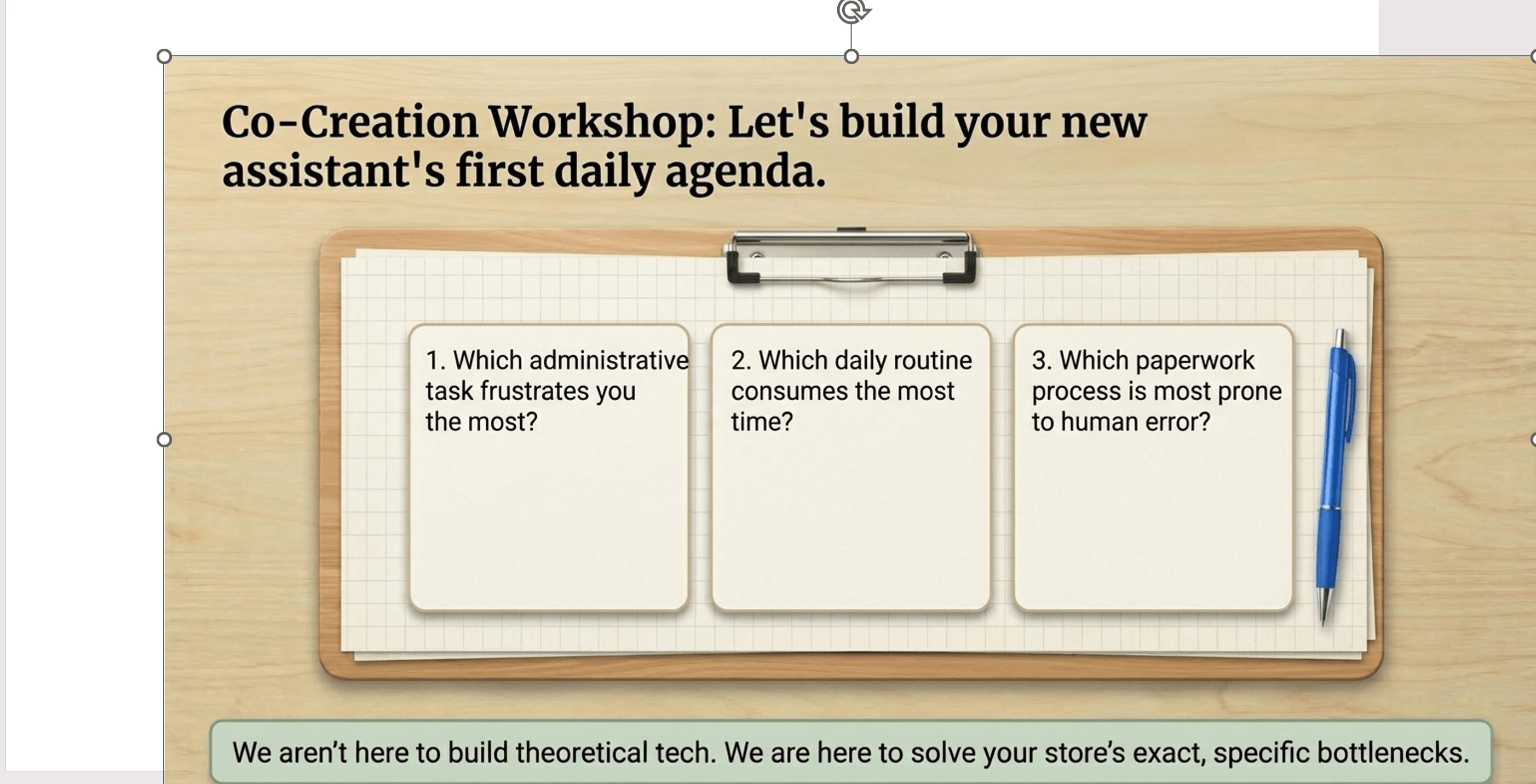
Method 1: Manually Retype the Text
The most straightforward approach is to manually add text boxes on top of the scanned slides and retype the content by looking at the image.
Steps:
- Open the scanned PPT in PowerPoint
- Insert new text boxes where you need to change or add text
- Manually type the text by referencing the image underneath
- Adjust font size, color, and position to match the original appearance
Pros: No extra tools needed; PowerPoint itself is all you need.
Cons: Extremely labor-intensive, especially with many slides; high risk of typos from manual retyping; formatting, font sizes, and colors all need manual adjustment; very time-consuming and hard to match the original layout precisely.
Method 2: Use OCR Tools to Extract Text, Then Paste
You can use OCR tools (such as Google Docs OCR, Microsoft OneNote, online OCR websites, or mobile OCR apps) to extract text from the slide images first, then paste it back into PowerPoint.
Steps:
- Export each slide of the scanned PPT as an image (Save As PNG/JPG)
- Upload the images to an OCR tool to recognize text
- Copy the recognized text and paste it into new text boxes in PowerPoint
- Manually adjust text box positions, font sizes, and formatting
Pros: Many free OCR tools are available; text recognition accuracy is usually decent.
Cons: Each slide must be processed separately. OCR returns plain text without the original layout, font sizes, or colors, so a longer deck still needs substantial manual formatting.
Method 3: Use 2pptx for One-Click Conversion (Recommended)
If the deck has many pages and the layout should stay in place, 2pptx can keep each page as a background and rebuild detected text as editable text boxes. The result stays visually close to the scanned page, but charts, icons, and shapes may still remain in the background.
This method is especially useful for these common scanned PPT scenarios:
- Scanned presentations from others that need a few text changes before reuse
- Old training materials or courseware that need updated dates, data, or contact info
- Scanned contracts, reports, or certificate pages that need to be translated
- Screenshot-based PPTs that need typo fixes or wording adjustments
Here is a complete walkthrough using a real example.
Step 1: Confirm Your PPT Is Scanned
Open the file in PowerPoint and click on any text in the slide. If what gets selected is one large image covering the entire page rather than a text box, it is a scanned PPT.
Step 2: Open 2pptx.com and Upload the File
Go to 2pptx.com and upload the scanned PPT pages. Upload a PDF, PNG/JPG images, or an image-only PPTX with one full-slide image per slide. Mixed PPTX files containing native text boxes, shapes, or multiple images do not meet this image-only import requirement; export the relevant pages to PDF first if you need to convert them. Free uploads are limited to 35MB; paid or redemption-code uploads can go up to 150MB and may take longer.

Step 3: Wait for Processing and Download
After uploading, the system automatically performs OCR text recognition, background inpainting, and PPTX generation. It usually finishes within a few minutes. Save your pickup code and click download to get the PPTX file.
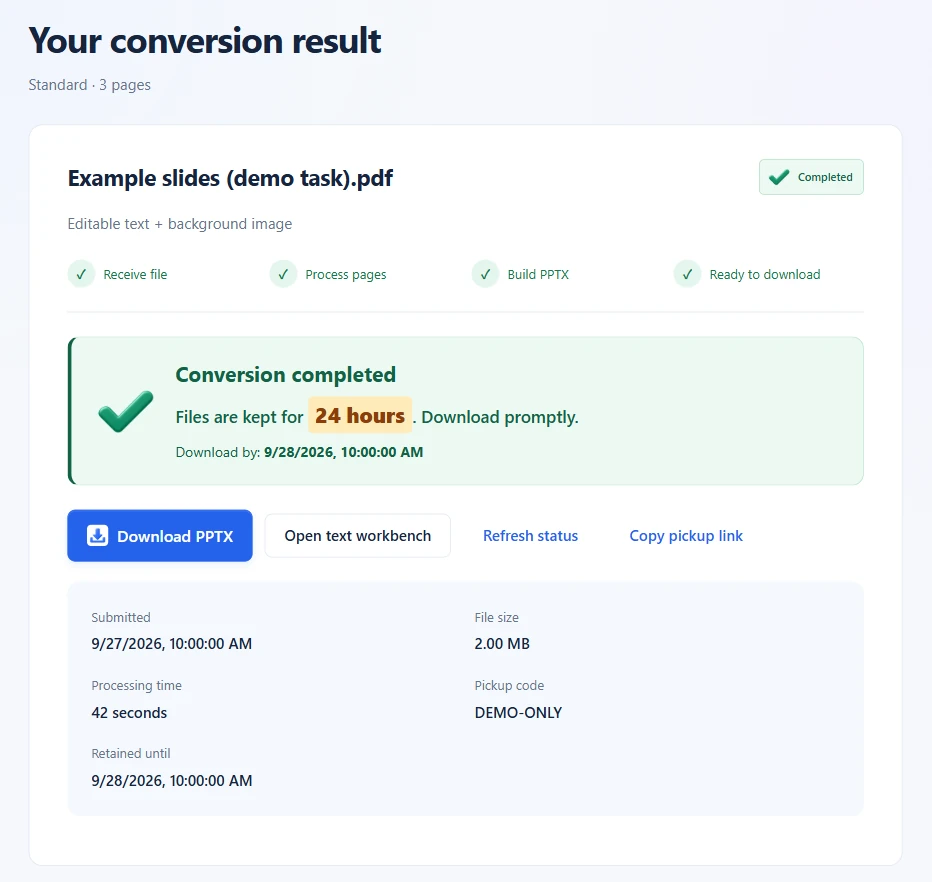
Step 4: Open in PowerPoint and Edit the Text
Open the downloaded PPTX in PowerPoint and double-click the rebuilt text boxes. The page stays visually close to the scanned slide, while wording, font size, and color can be adjusted.
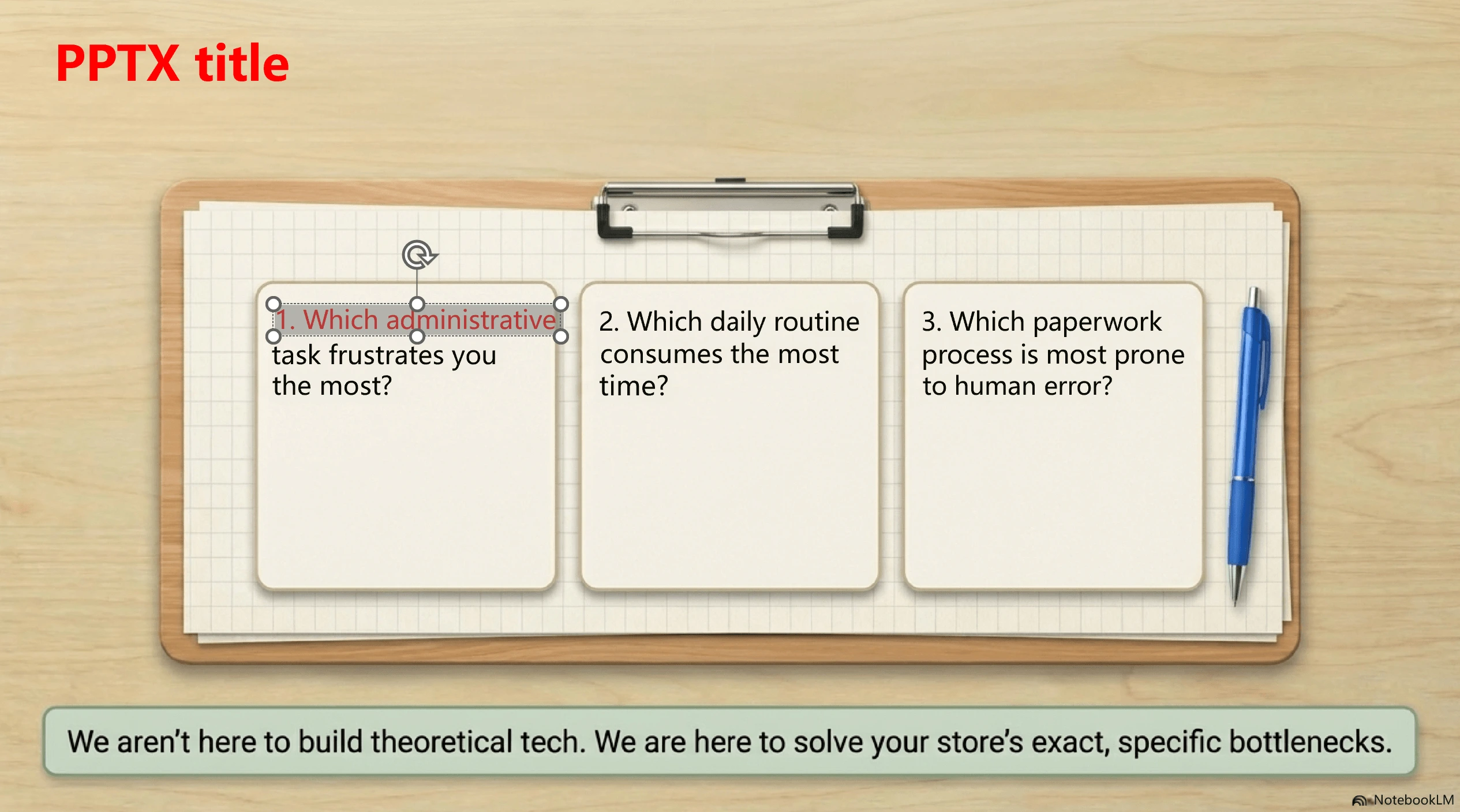
Pros: Keeps the page appearance where possible and turns recognized text into editable text boxes for wording fixes, translation, and number updates. Standard conversion is free; Premium clean and Full-element modes are priced separately on the page. Review spelling, substituted fonts, and line breaks, and adjust them where needed.
Cons: Standard and Premium clean focus on text; charts, icons, and shapes usually remain in the background. Choose Full-element mode to move, resize, or replace separated visuals. Those visuals are generally transparent images, not native vector shapes or charts with editable data.
If icons, illustrations, decorations, or background elements also need adjustment, read this guide to Full-element editable PPT.
Comparison of All 3 Methods
| Manual Retyping | OCR Extract + Paste | 2pptx Conversion | |
|---|---|---|---|
| Preserves original appearance | Requires manual recreation | No | Yes |
| Text is editable | Yes (manually typed) | Yes (manual formatting) | Yes |
| Effort required | Very high | High | Low (upload and convert) |
| Layout accuracy | Depends on manual skill | Very low | High |
| Cost | Within your existing software | Depends on the OCR tool | Standard free; Premium clean and Full-element paid |
| Best for | Changing 1-2 text spots | Extracting text content only | Preserving layout + editing text |
How to choose
Scanned slides contain images rather than text boxes. OCR can recognize the words, but the right next step depends on what you need:
- If you only need to change one or two spots, manually adding text boxes on top is the quickest fix.
- If you need to extract large amounts of text for reuse, use an OCR tool to recognize and copy the text.
- If you need to keep the page appearance while turning recognized text into editable text boxes, 2pptx.com can be used for this workflow.
Once you have editable text boxes, follow the steps for resizing image text, replacing sentences, and checking the background.