How to convert an image PDF to editable PPT: 3 methods compared
You have a PDF that looks correct, but its text cannot be selected, copied, or edited. This is usually an image-based PDF: each page is a scan or screenshot rather than a PDF with selectable text. Here are three ways to handle it.
Start with your file
Upload an image or PDF to convertUpload an image-based PDF directly to 2pptx; there is no need to take screenshots or split it into PNG files first. Conversion recognizes the text and creates PowerPoint text boxes. In Standard and Premium clean conversion, non-text content usually stays in the background image. Check one page for recognition and background quality before processing the rest.
Why Can't Image PDFs Be Directly Converted to Editable PPT?
A normal "text-based PDF" stores actual text data, so tools like Adobe Acrobat or WPS can extract the text and export it as PPTX directly.
An image-based PDF is different. Each page is a picture with no selectable text data. Without OCR, any "PDF to PPT" conversion still produces images pasted onto slides.
A quick way to check: open the PDF in any reader and try to select text on the page. If you cannot select it, or the copied result is garbled, it is almost certainly image-based.
Method 1: Use Adobe Acrobat's Built-in OCR
Adobe Acrobat Pro includes OCR functionality that can recognize text in scanned documents and then export to PowerPoint.
Steps:
- Open the image PDF in Acrobat Pro
- Go to "Scan & OCR" → "Recognize Text"
- After recognition, choose "Export PDF" → "Microsoft PowerPoint"
- Save as a .pptx file
Pros: Standard workflow, reliable for users who already have an Acrobat subscription.
Cons: Requires a paid subscription; the exported layout often breaks, especially for pages with tables, multi-column text, or complex backgrounds; OCR accuracy depends heavily on scan quality.
Method 2: Use Free Online OCR and Copy Manually
If you only need to extract a few paragraphs, you can use free OCR tools (such as Google Docs, online OCR websites, or mobile OCR apps) to extract the text first, then manually paste it into PowerPoint.
Steps:
- Screenshot each page of the PDF or convert pages to images
- Upload to an online OCR tool to recognize text
- Copy the recognized text and paste it into PowerPoint slides
- Manually adjust formatting and layout
Pros: Free; no specific software required.
Cons: Very labor-intensive, especially with many pages; original formatting, colors, and font sizes are lost; not suitable when you need to preserve the original visual appearance.
Method 3: Use 2pptx for One-Click Conversion (Recommended)
To keep the original layout, 2pptx can use each PDF page as the background and rebuild OCR-detected text as editable text boxes. This avoids manual re-layout, while non-text content may still remain in the background.
This approach is especially useful for these common image-based PDF scenarios:
- Scanned paper documents or contracts where you need to update a few fields before resubmitting
- PDF presentations from others that need to be translated into another language
- Exported reports or certificates where you need to update dates, names, or numbers
- PDFs created from photos or screenshots where you need to extract and re-edit the text
Here is a complete walkthrough using a real example.
Step 1: Confirm Your PDF Is Image-Based
Open the file in any PDF reader and try to select text on the page with your mouse. If the text cannot be selected, it is an image-based PDF.
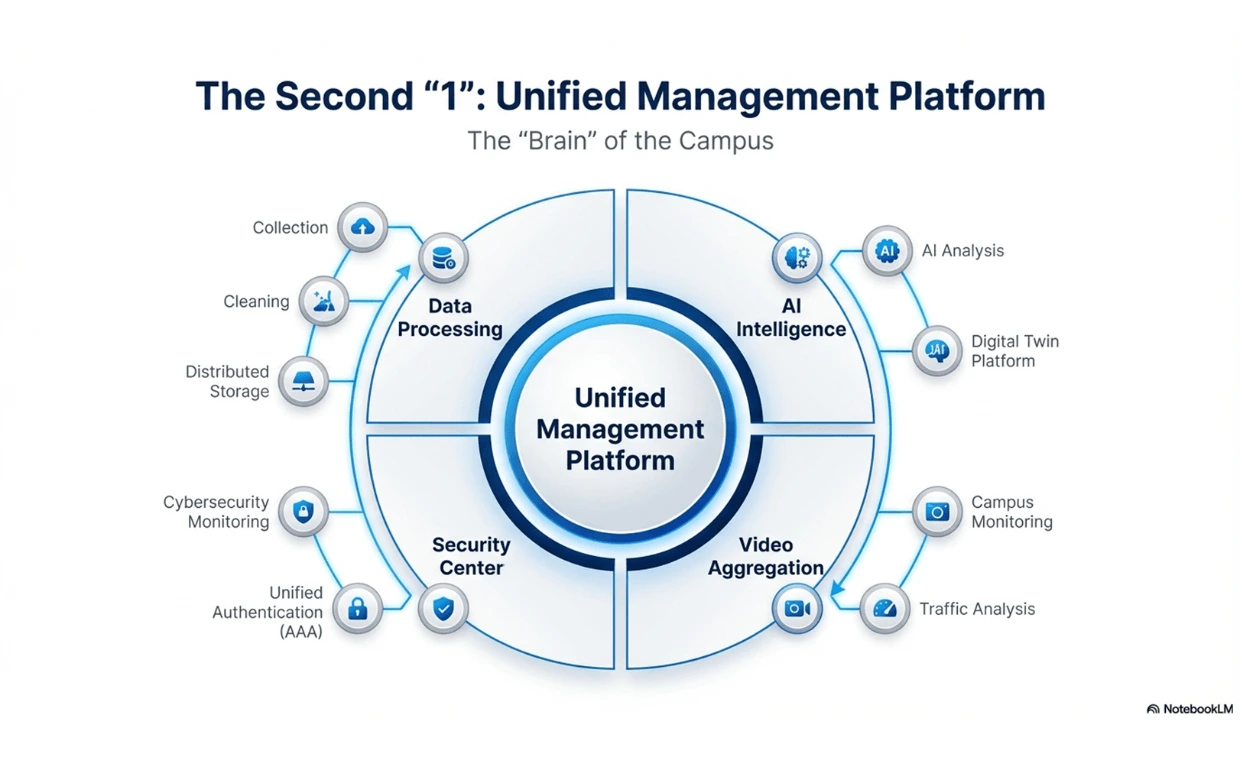
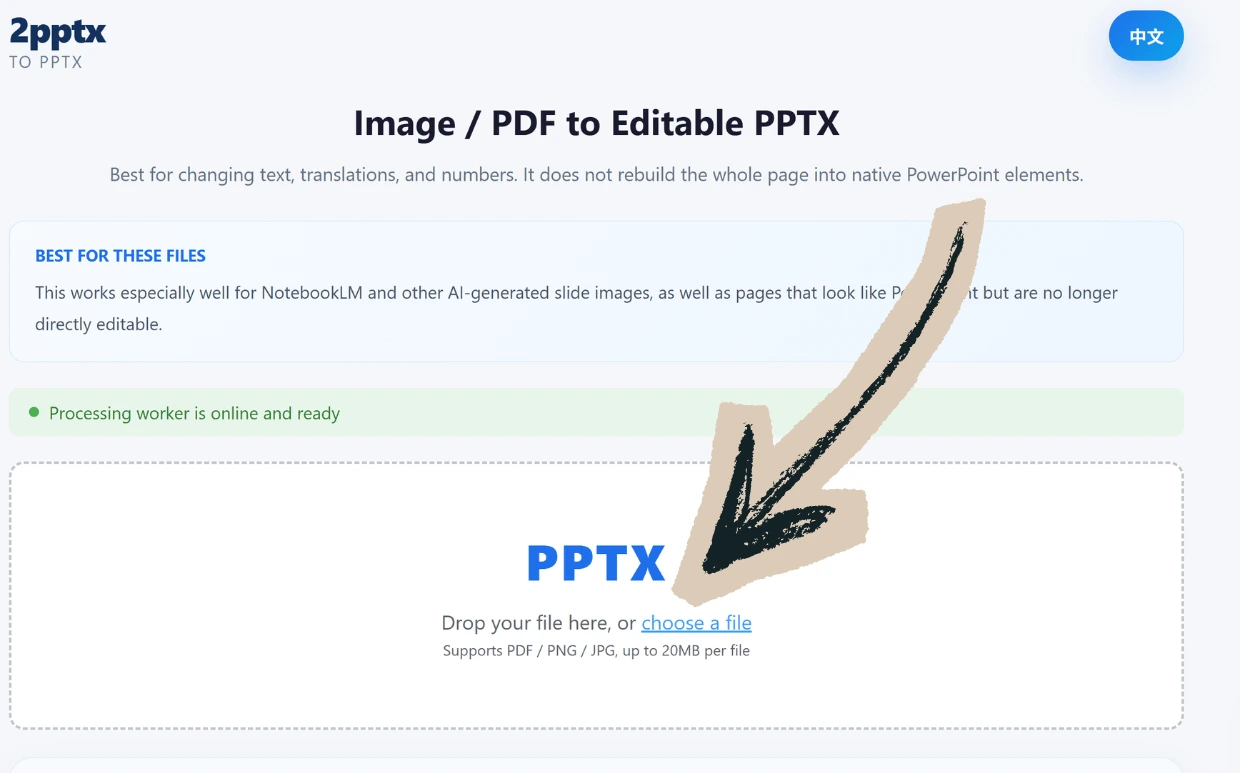
Step 2: Open 2pptx.com and Upload the File
Go to 2pptx.com and click the upload area to select your image-based PDF. Upload the PDF directly without splitting it into images first. PNG/JPG and image-only PPTX files with one full-slide image per slide are also supported. Free uploads are limited to 35MB; paid or redemption-code uploads can go up to 150MB and may take longer.
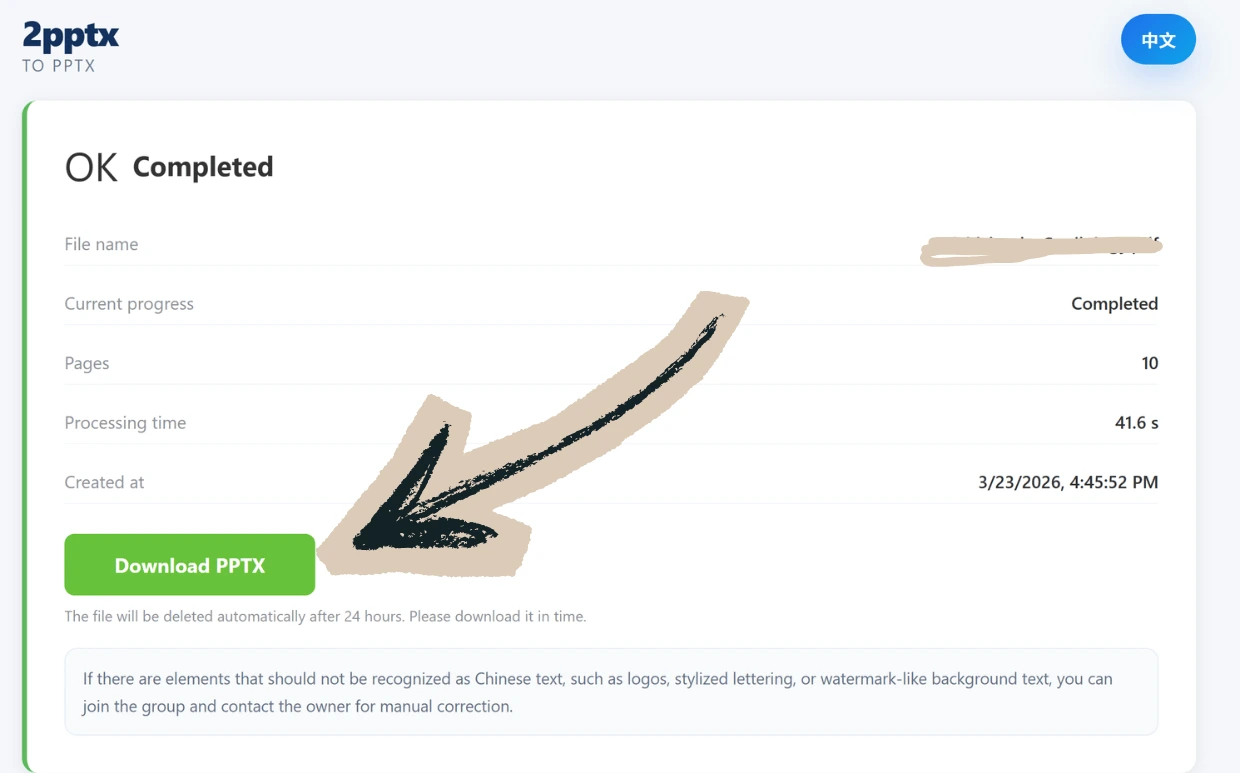
Step 3: Wait for Processing and Download
After uploading, the system automatically performs OCR recognition, background repair, and PPTX generation. It usually finishes within a few minutes. Save your pickup code and click download to get the PPTX file.
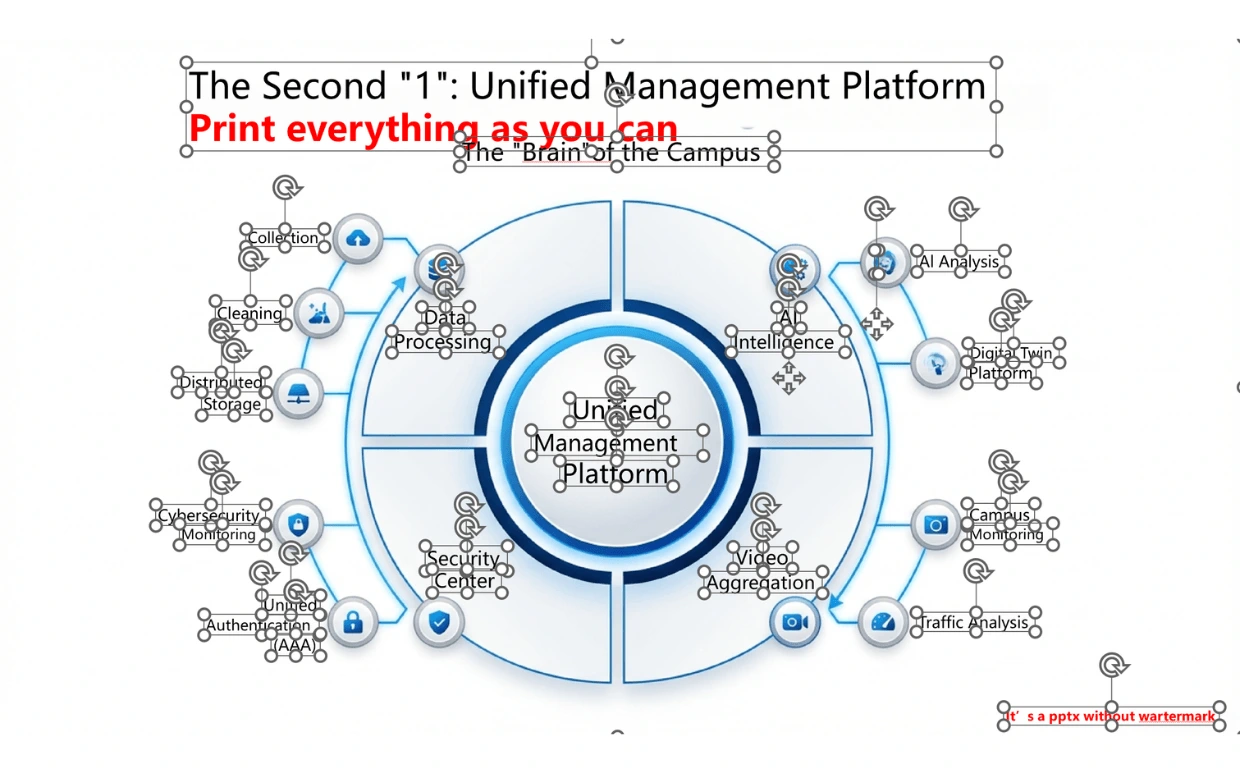
Step 4: Open in PowerPoint and Edit the Text
Open the downloaded PPTX in PowerPoint and double-click the rebuilt text boxes. The page stays visually close to the source PDF while the text can be edited independently.
Pros: Preserves the original page layout and visual design; text is directly editable; ideal for translation, wording fixes, typo corrections, and number updates; Standard conversion is free; Premium clean and Full-element modes are paid. Check the result for recognition errors, fonts, and line breaks.
Cons: Charts, icons, shapes, and other non-text elements remain in the background image and cannot be edited individually. If you need to fully reconstruct native PowerPoint graphic objects, this tool is not the right fit.
If icons, illustrations, decorations, or background elements in the image-based PDF also need adjustment, read this guide to Full-element editable PPT.
Comparison of All 3 Methods
| Adobe Acrobat OCR | Online OCR + Manual | 2pptx Conversion | |
|---|---|---|---|
| Preserves original appearance | Often breaks layout | No | Yes |
| Text is editable | Yes | Yes (manual formatting) | Yes |
| Effort required | Medium | High (page by page) | Low (upload and convert) |
| Cost | Paid subscription | Depends on the tool | Standard free; other conversion modes paid |
| Best for | Simple pages + Acrobat users | Extracting a few text blocks | Preserving layout + editing text |
How to choose
The key to converting an image PDF to editable PPT is OCR text recognition. Which method to choose depends on your core need:
- If you already have Acrobat Pro and the pages are simple, try Acrobat's built-in OCR export.
- If you only need to grab a few text blocks, online OCR with manual copy-paste works fine.
- If you need to preserve the original visual layout while making the text editable, 2pptx.com is the most direct option.