Fix unexpected line breaks in a converted PowerPoint
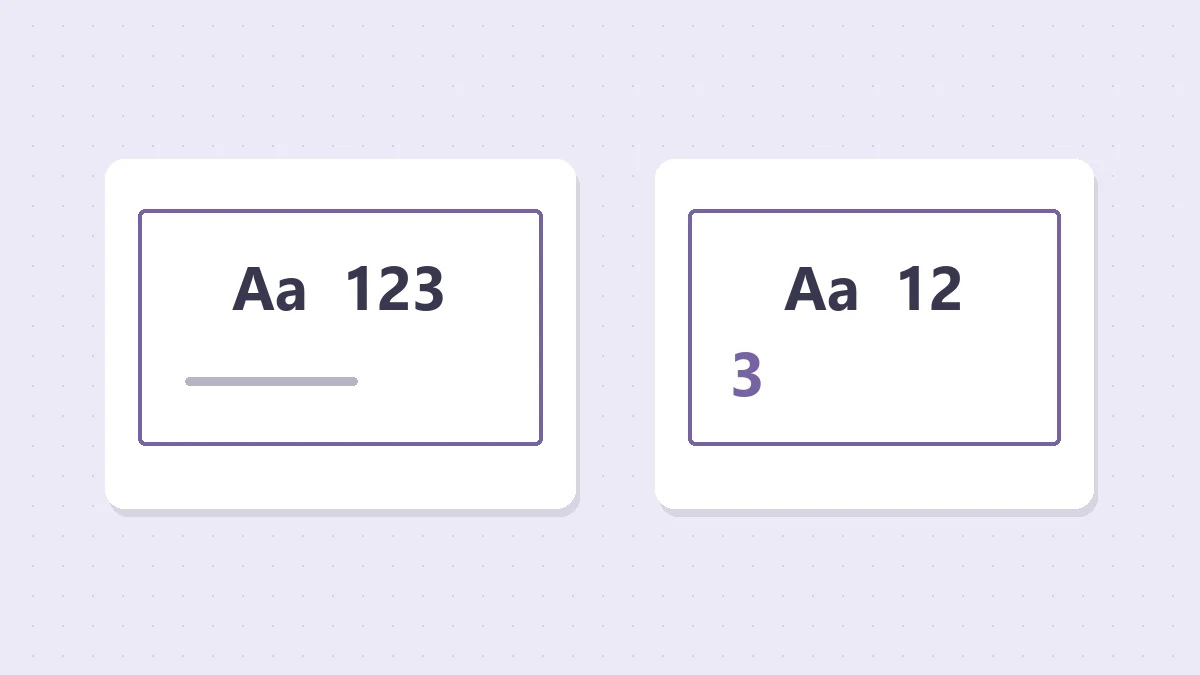
A heading fits on one line at your desk but wraps on the meeting-room computer. Open the same PPTX on both machines. If the heading is editable and the pictures stay put, start with the fonts available on each computer and the width of the text box.
Choose an export font for a test slide
Choose a font the viewing computer has
Standard conversion offers an export font under More options, including Microsoft YaHei and Source Han Sans. For Source Han Sans, check that the presenting machine has the chosen font installed. If the two machines have different font collections, agree on a shared typeface and apply it to a copy of the downloaded file.
Build a one-slide test
Choose a long heading, a caption with parentheses and a numeric label close to an icon. Record the last word on the heading line, the closing parenthesis and the unit next to the number. Open the actual file on the presenting computer and check those three details. A screenshot only shows the layout on the machine that made it.
Check spacing and manual breaks
Click inside a copy of the box and check for a manual line break. If only one word wraps, try widening the box or reducing its side margins while leaving space for nearby artwork. When successive lines belong to separate objects, use the paragraph repair steps. Deselect the box and check the final line in Slide Show view.
For an editable handoff with a fixed reference, include the PPTX and a PDF exported on the machine where you approved the layout. A colleague can compare the two before presenting.