How to choose Standard, Premium clean, or Full-element editing for AI image slides

NotebookLM, GPT Image, ChatGPT image generation, and similar tools often export only the finished slide image. Text, icons, illustrations, and backgrounds are flattened together, so PowerPoint cannot select them as separate source objects.
Choose a 2pptx workflow by answering two questions: is the background simple or complex, and do you only need to edit text or also adjust visual elements?
Choose by background and editing scope
- Simple background, text edits only: choose Standard conversion.
- Complex background, text edits only: choose Premium clean conversion.
- Text and visual elements both need adjustment: choose Full-element editable PPT.
The same images in three modes: edits and PPTX downloads
On October 19, 2026, we converted the same two-page PDF in Standard, Premium clean and Full-element modes. Its pages contain the two AI-generated source images below. Each download includes the converted page and an edited copy. We changed the existing converted text boxes, saved the files and reopened them in PowerPoint.
Download the shared two-page input PDF
Simple background: a product delivery slide
Change the title from “产品项目交付路径” (product delivery path) to “产品项目交付计划” (product delivery plan). In the Full-element example, swap the clipboard with the tablet, and the blocks with the checklist: four separate pictures move. Their internal text travels with them; the numbered headings, body text below and bottom cards stay in place.
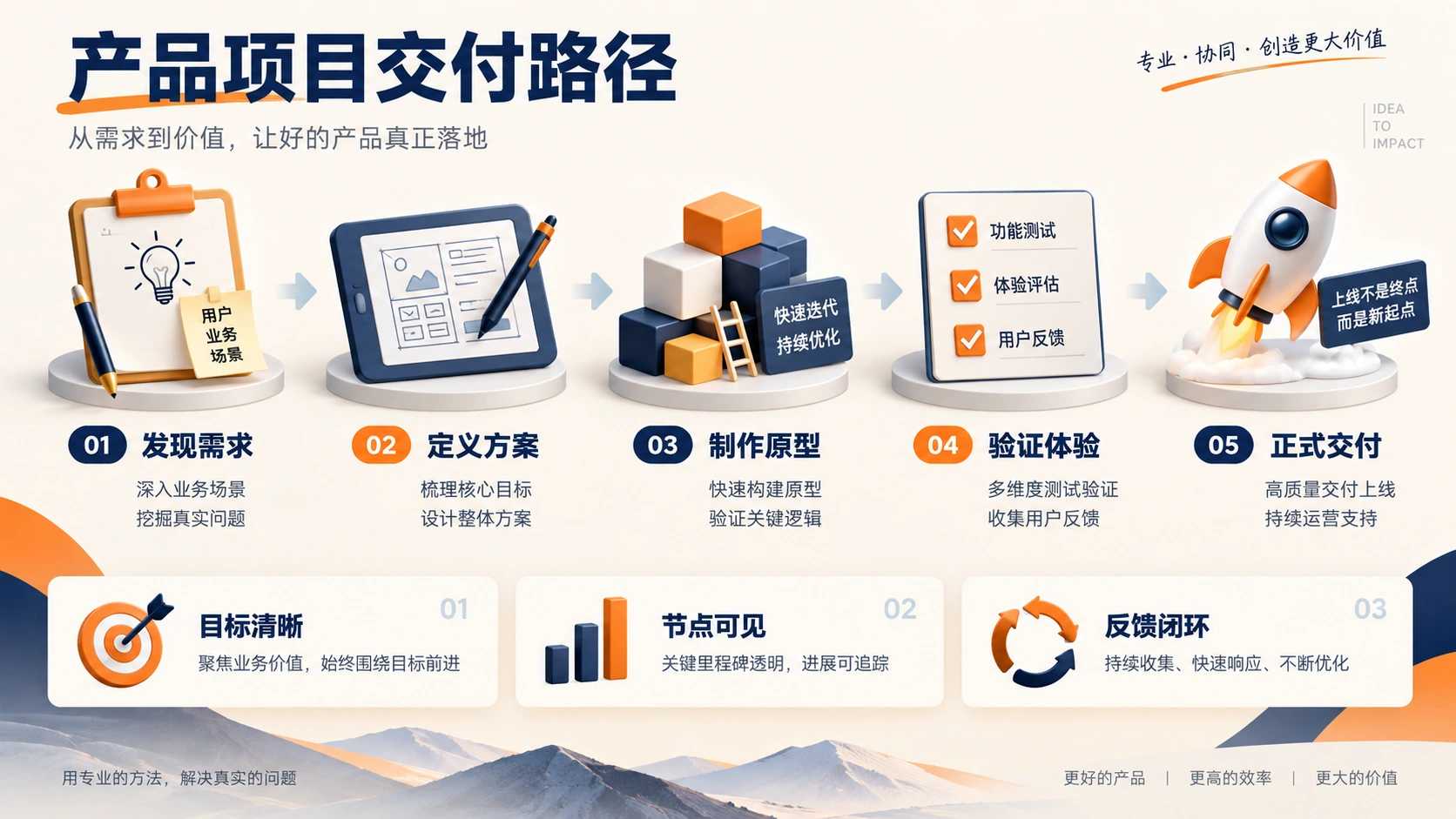
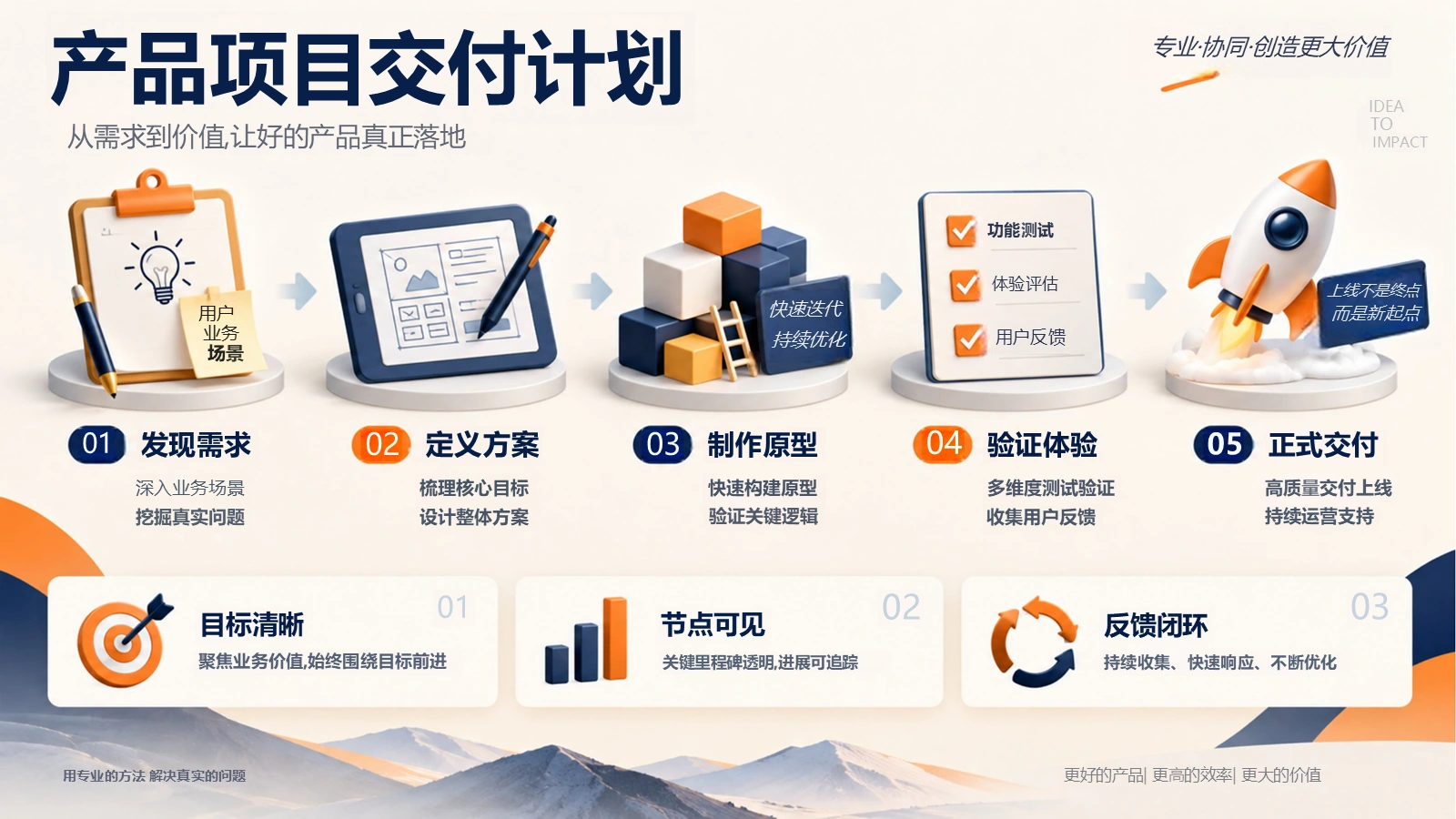
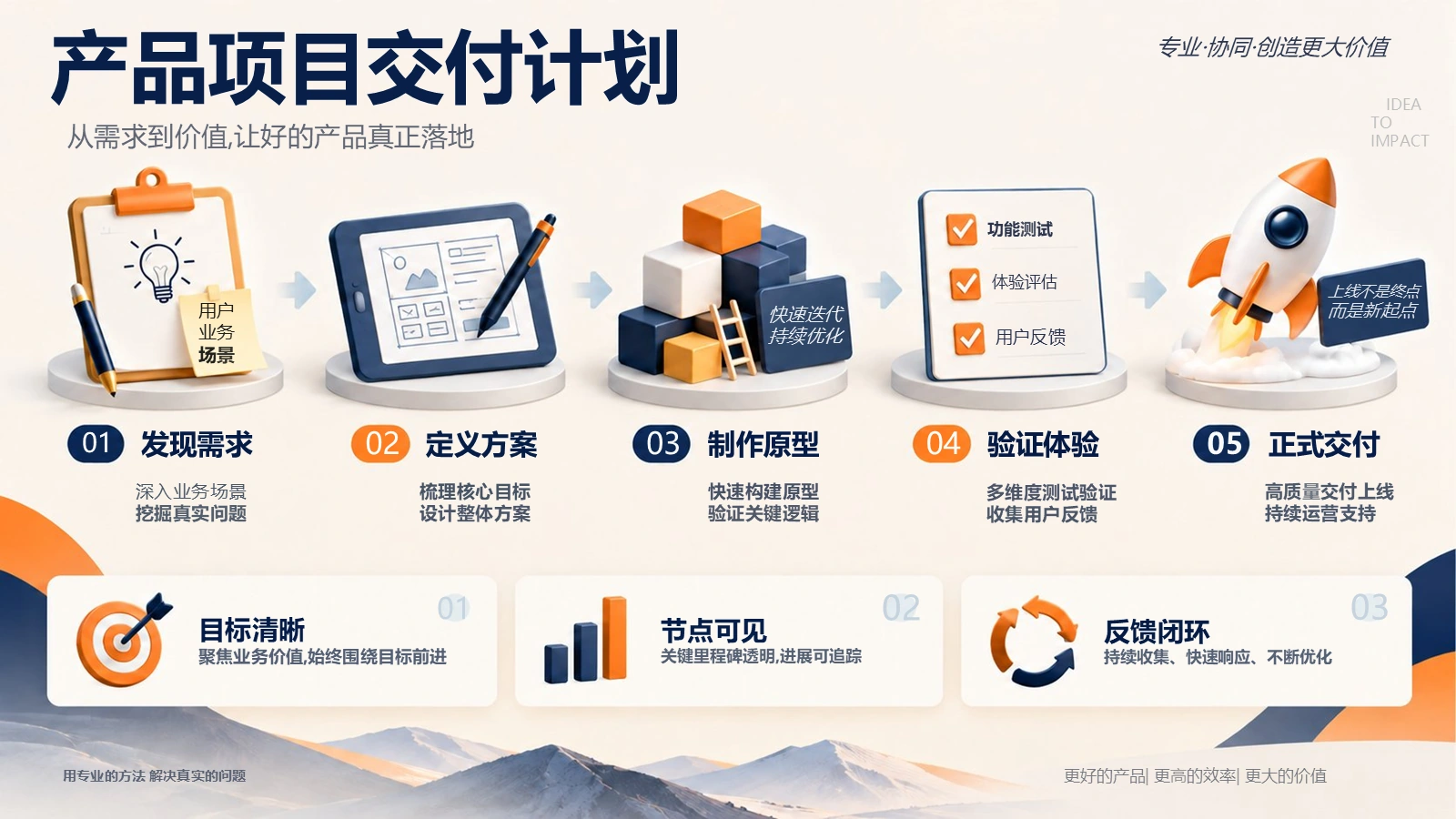
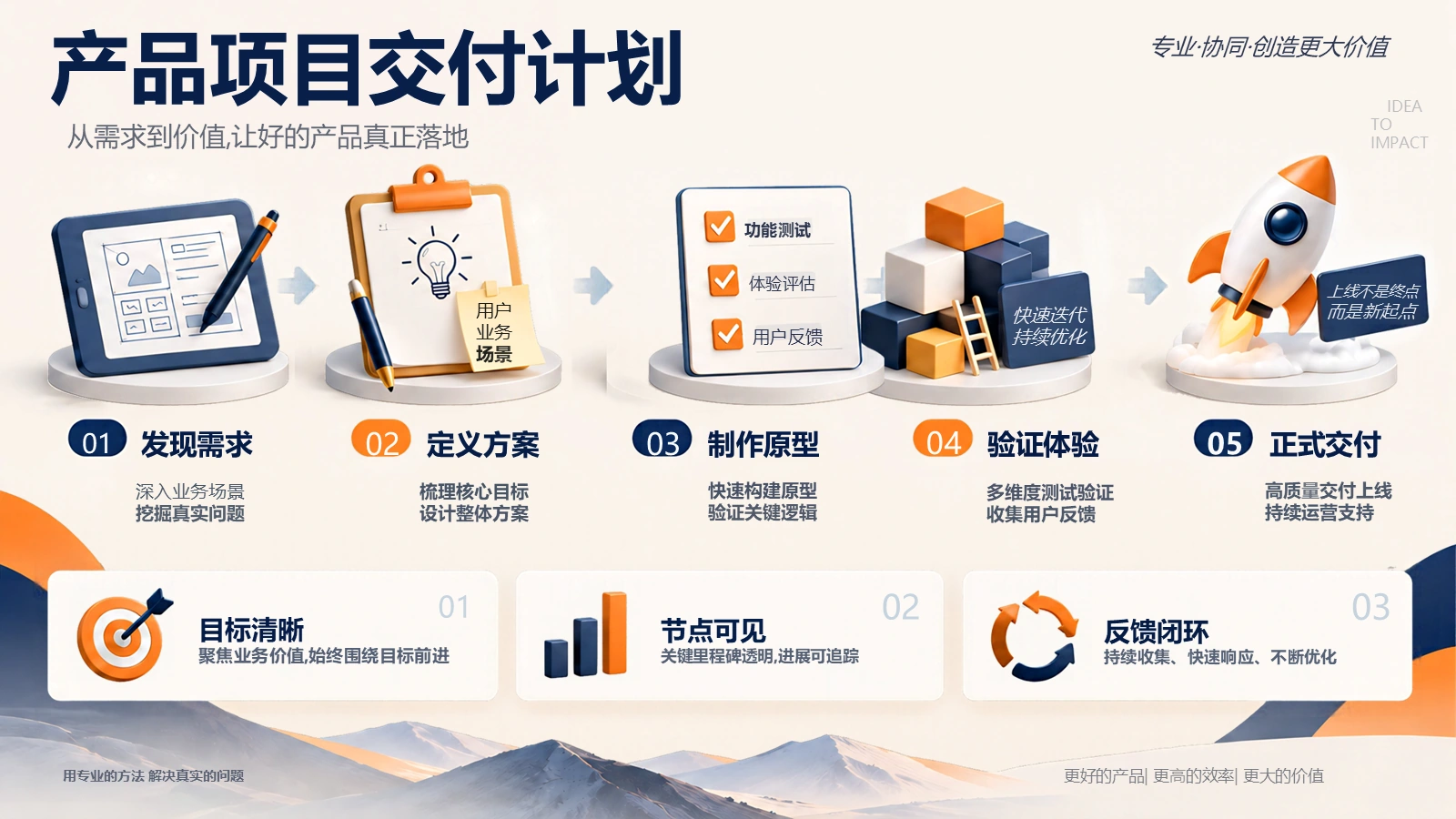
Standard conversion completed this text change on the light background. Premium clean also provides editable text, with the pictures kept in the background. The Full-element example rearranges four pictures while preserving the layout in the rest of the slide.
Compare the edited text area at the same crop



Text edits and four separate picture moves
The video shows the converted and text-edited pages for Standard, Premium clean and Full-element, followed by two pairs of pictures swapping places. Every frame comes from the actual PPTX exported in PowerPoint.
| Mode | Two slides in the file | Download |
|---|---|---|
| Standard | Slide 1: converted page. Slide 2: text-edited copy. | Download PPTX (0.3 MB) |
| Premium clean | Slide 1: converted page. Slide 2: text-edited copy. | Download PPTX (0.2 MB) |
| Full-element | Slide 1: converted page. Slide 2: text-edited copy with four pictures rearranged. | Download PPTX (8.9 MB) |
Complex background: a robot slide with lighting effects
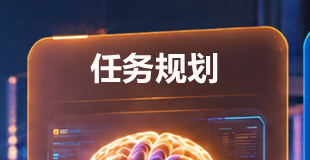
Change “任务决策” (task decisions) to “任务规划” (task planning) on the orange panel. In the Full-element example, swap the camera with the robot arm, and the location map with the brain: four separate pictures move. The panels, headings and body text stay in place.




All three modes completed this text change. On a complex background, compare the repaired text area, lines and fine details in the close-ups below. The pictures remain in the background in Standard and Premium clean; the Full-element example rearranges four separate pictures.
Compare the edited text area at the same crop


Text edits and four separate picture moves
The video shows the converted and text-edited pages for Standard, Premium clean and Full-element, followed by two pairs of pictures swapping places. Every frame comes from the actual PPTX exported in PowerPoint.
| Mode | Two slides in the file | Download |
|---|---|---|
| Standard | Slide 1: converted page. Slide 2: text-edited copy. | Download PPTX (0.5 MB) |
| Premium clean | Slide 1: converted page. Slide 2: text-edited copy. | Download PPTX (0.3 MB) |
| Full-element | Slide 1: converted page. Slide 2: text-edited copy with four pictures rearranged. | Download PPTX (14.5 MB) |
See how to check a downloaded PPTX, or try one page of your own with Standard text editing, Premium clean text editing, or Full-element text and picture editing.
Why are NotebookLM and GPT Image 2 slide pages hard to edit?
Many AI slide workflows export a finished visual result, not a maintainable PowerPoint project. NotebookLM slides are often optimized for display. GPT Image 2 or ChatGPT-generated slide images are closer to designed images than editable slide files. Text, icons, illustrations, background art, and decorations may all be merged into one bitmap. When you click inside PowerPoint, you select the whole page instead of a text box or shape.
That creates familiar problems:
- You want to change one sentence, but the text cannot be selected.
- You want to move an icon, but the entire slide moves.
- You want to move a decorative block, but the entire background moves.
- You like an AI-made layout, but the original object structure is missing.
Simple background, text edits only: choose Standard conversion
Standard conversion works best with solid colors, open space, light gradients, and clearly separated content. It detects the text, cleans the original text areas, and rebuilds the content as editable PowerPoint text boxes.
It is fast and practical for changing headings, body copy, numbers, dates, and translations. Icons, charts, shapes, and decorations remain in the background image. Text over photos, illustrations, strong gradients, or detailed textures may leave visible cleanup marks.
Complex background, text edits only: choose Premium clean conversion
Premium clean conversion is designed for text that overlaps illustrations, photos, textures, gradients, lighting, or decorative patterns. It sends the page image to a large image-generation model to rebuild a text-free background, then places the recognized text back as editable text boxes.
Premium clean usually handles complex text areas more naturally than Standard conversion. It is still a background-image-plus-editable-text workflow. It does not turn icons, shapes, or charts into native PowerPoint objects, and small icons or fine details may change slightly during generation.
Visual elements also need adjustment: choose Full-element editable PPT
If the task goes beyond text edits and you need to move icons, replace illustrations, adjust decorations, or change visual layering, choose Full-element editable PPT. The delivered PPTX contains editable text boxes and non-text content generally separated into transparent images that can be selected, moved, resized, and replaced.
Full-element editable does not recreate the original PowerPoint source file. Non-text content is generally not a native vector shape, complex chart data is not automatically restored, and animations or special effects cannot be guaranteed.
For a closer look at how the visual result and file structure differ, see this Full-element editable PPT before-and-after guide.
How the three modes differ
| What you want to edit | Use this 2pptx workflow | What you get |
|---|---|---|
| Text on a simple background | Standard conversion | Background image plus editable text boxes |
| Text on a complex background | Premium clean conversion | Large-model text-free background plus editable text boxes |
| Text and visual elements in one complete file | Full-element editable PPT | Assembled PPTX with editable text and separately adjustable visual elements |
| Animations, native charts, exact object structure | Manual rebuild is usually needed | The original structure is not present in a flat image |
How do you tell whether a background is complex?
- Solid colors, large open areas, regular blocks, and light gradients are usually simple backgrounds.
- Text over people, photos, illustrations, textures, strong gradients, or lighting is usually a complex background.
- If Standard conversion leaves obvious patches, blur, or repeated texture around removed text, try Premium clean.
- If the real goal is moving non-text content, use Full-element editable PPT instead of retrying the two text-edit workflows.
How to use the right workflow
- Open 2pptx.com.
- Choose Standard conversion for simple-background text edits.
- Choose Premium clean conversion for complex-background text edits.
- Choose Full-element editable PPT when visual elements also need adjustment.
- Upload a PDF, PNG, or JPG file and review the mode, page count, and price details.
- Submit the task and wait for processing to finish.
- Download the PPTX and review the text, background, and layout before making final adjustments.
FAQ
Can an image-based PPT be fully editable?
Choose 2pptx full-element editable PPT to receive a complete assembled PPTX. Text is rebuilt as editable text boxes, while visual elements are generally separated into transparent images that can be selected and adjusted individually. They are not native PowerPoint vectors, and chart data or animations are not automatically restored.
Do Standard and Premium clean both make text editable?
Yes. Both detect text and rebuild it as editable text boxes. The main difference is background repair: Standard fits simple backgrounds, while Premium clean is designed for complex backgrounds.
Does Premium clean make icons and shapes editable?
No. Premium clean still focuses on text edits over complex backgrounds. Non-text content remains in the background image. Choose Full-element editable PPT when those visuals also need adjustment.
Does Full-element editable restore native charts and animations?
Not reliably. Visual elements are generally delivered as transparent images, while chart data, animations, and the original source-object structure are not automatically restored.
Once you choose Full-element mode, see how to edit separated text, icons, and illustrations for replacing pictures, reusing objects, and adjusting their stacking order in the downloaded PPTX.
For company assets, follow the guide to replacing logos and product pictures. Check that the target image is separate before adjusting its crop and placement.
How to choose
For text edits, choose Standard conversion on simple backgrounds and Premium clean on complex backgrounds. If icons, shapes, and decorations also need adjustment, choose Full-element editable PPT. Selecting by the real editing scope is more useful than expecting a flat image to become the original source file automatically.