How to Convert Screenshots, PNG, JPG, or Slide Photos to Editable PowerPoint
Start with your file
Try text editing with Standard conversionTo turn a screenshot into editable PowerPoint, convert the text in the image into text boxes. Upload PNG or JPG files, use Standard for simple backgrounds or Premium clean for complex backgrounds, then check the downloaded PPTX in PowerPoint. You can upload several images, arrange their order, and combine them into one deck. Choose Full-element editable PPT when icons and illustrations also need to move separately.
Want to check what you can edit first? See a real edit and download a sample. If your files are ready, jump to the conversion steps.
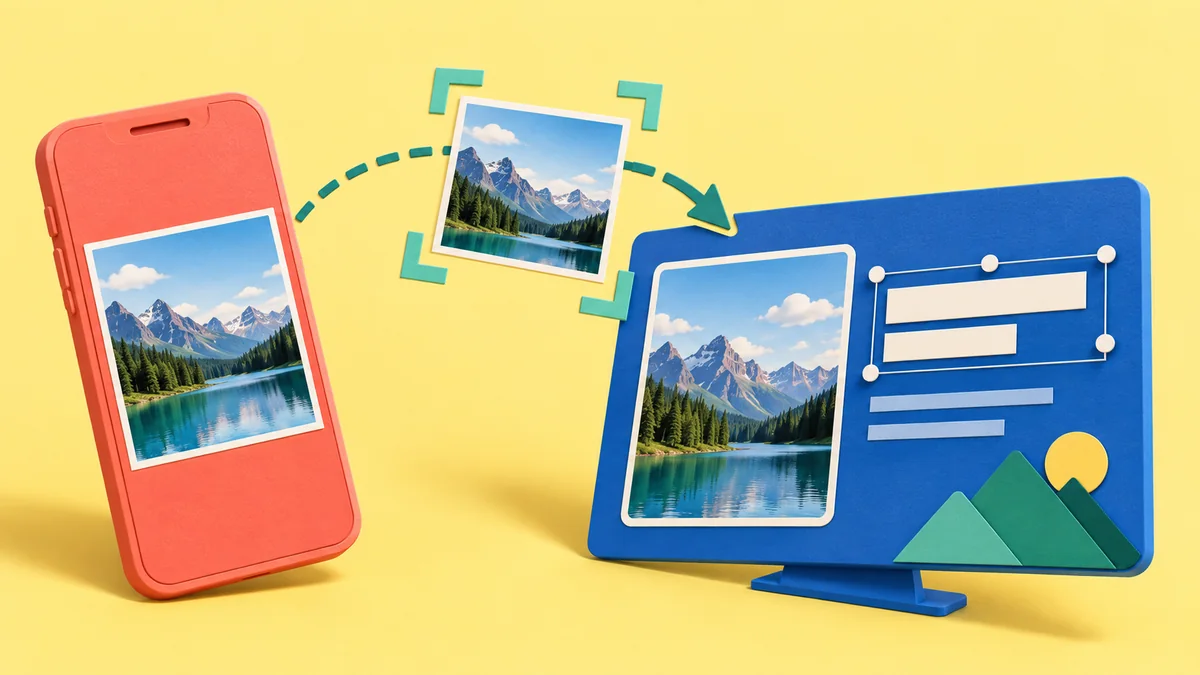
Screenshots, PNG/JPG exports, and phone photos contain pixels rather than editable text boxes. All three can be processed with OCR, but photos also bring perspective, glare, and blur into the result.
Choose a mode for the parts of your screenshot you need to edit
Non-text elements are generally transparent images; chart data, animations, and native vector paths are not automatically restored. See real Full-element results and delivery details →
See what you can edit: text and separate pictures
For a real text edit, see the tea-slide editing walkthrough: we changed a title in a Full-element result, resized and moved one picture, then saved and reopened the file. If you only need text edits, Standard or Premium clean may be enough, depending on the background.

Download the two-slide icon and illustration reuse example (PPTX). Try moving one icon in PowerPoint, then save and reopen the file. The tablet, pen, and white stand belong to one picture and move together. Follow the picture-reuse walkthrough for the full steps.
Need to move icons or illustrations in your own image? Upload a page for Full-element conversion.
Why can a screenshot not be edited directly in PowerPoint?
PowerPoint can edit native objects such as text boxes, shapes, and charts. A screenshot is only a bitmap image. Once you insert it into PowerPoint, what you see is a picture of a slide rather than real editable slide objects.
That is why these problems are common:
- clicking on visible text selects the whole image instead of a text box
- changing one number means rebuilding an entire content block
- translating a page often requires covering the original image manually
- the layout looks complete, but the page is structurally non-editable
So "convert screenshot to editable PowerPoint" is not a simple file-format conversion. It is really a process of recognizing the text in the image and rebuilding it as editable layers.
Method 1: Rebuild the slide manually
The most direct option is to keep the screenshot as a visual reference and recreate the slide manually inside PowerPoint.
This method works best when:
- you only need to fix 1 or 2 pages
- you already want to redesign the layout anyway
- the screenshot contains limited text and a simple structure
The main advantage is control. You can decide the fonts, spacing, alignment, and hierarchy yourself.
The downside is effort. It is slow, error-prone on more complex layouts, and unrealistic when you have many screenshot-based slides. If your only goal is to change a few words, this workflow is often heavier than necessary.
Method 2: Run OCR and paste the text back into PowerPoint
The second option is to use OCR tools to extract the text from the screenshot, then paste that text back into PowerPoint and format it manually.
This method works best when:
- your main goal is to get the text content out
- you do not need to preserve the visual layout closely
- you are willing to rebuild the paragraphs and formatting yourself
It is usually faster than typing everything from scratch, especially for text-heavy images.
But OCR only solves text recognition. It does not restore the original PowerPoint structure. You still need to fix line breaks, heading hierarchy, font sizes, text positioning, and background conflicts manually.
Method 3: Convert the screenshot into editable PPTX
If your goal is to keep the current screenshot-based appearance while turning the visible text into editable content, the closer workflow is direct conversion to editable PPTX.
Tools like 2pptx.com do not attempt to redesign the whole slide from zero. Instead, they typically:
- keep the screenshot page as the background layer
- detect text regions inside the image
- rebuild the recognized text as editable PowerPoint text boxes
This approach is more suitable when:
- you only need to update headings, numbers, or explanatory text
- you want to translate screenshot-based slides into another language
- the current layout has already been approved
- you want a PPTX where at least the text becomes maintainable
A typical workflow
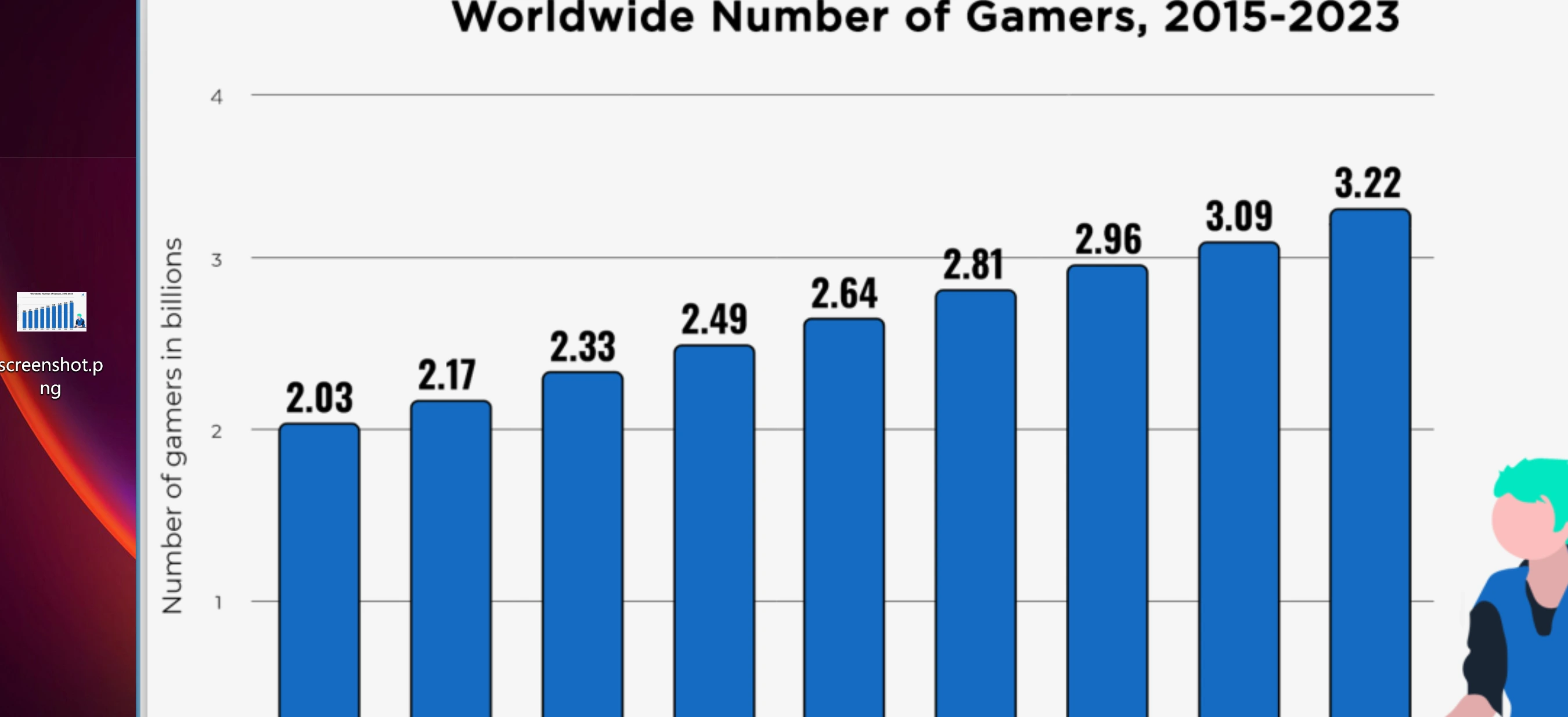
Step 1: Confirm the screenshot is not natively editable
Open the file in PowerPoint first. If clicking visible text selects the full image or there are no text boxes at all, the page is not natively editable.
Step 2: Upload the screenshot or image-based page
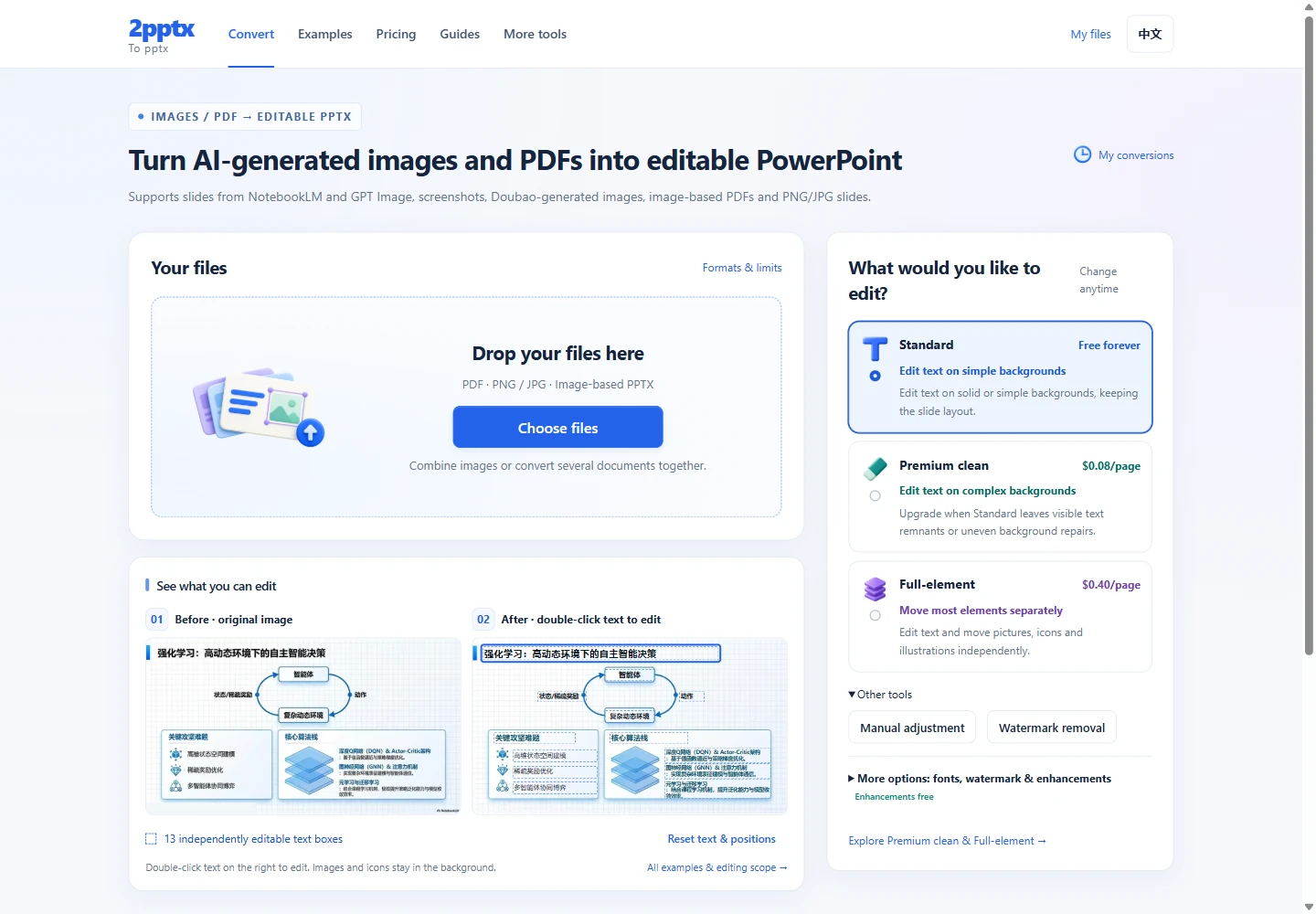
Select your PNG, JPG, or PDF in the 2pptx upload area. Start with Standard for text on a simple background. Choose Premium clean when text overlaps textures or illustrations, or Full-element when pictures also need to move separately. Check the page count and the selected mode's price before submitting.
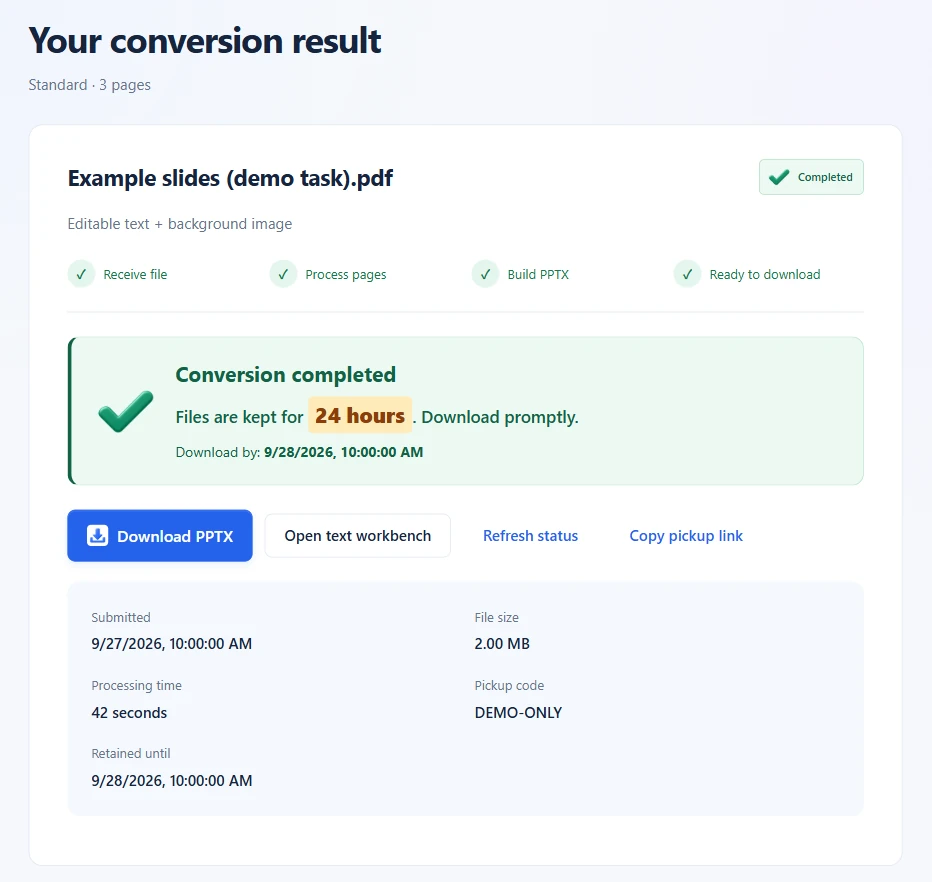
Step 3: Download the generated PPTX
After processing is complete, download the new PPTX file.
Step 4: Edit the text directly in PowerPoint
Once opened in PowerPoint, titles, paragraphs, and numbers will typically appear as editable text boxes, which makes wording changes, translation, and date replacements much easier.
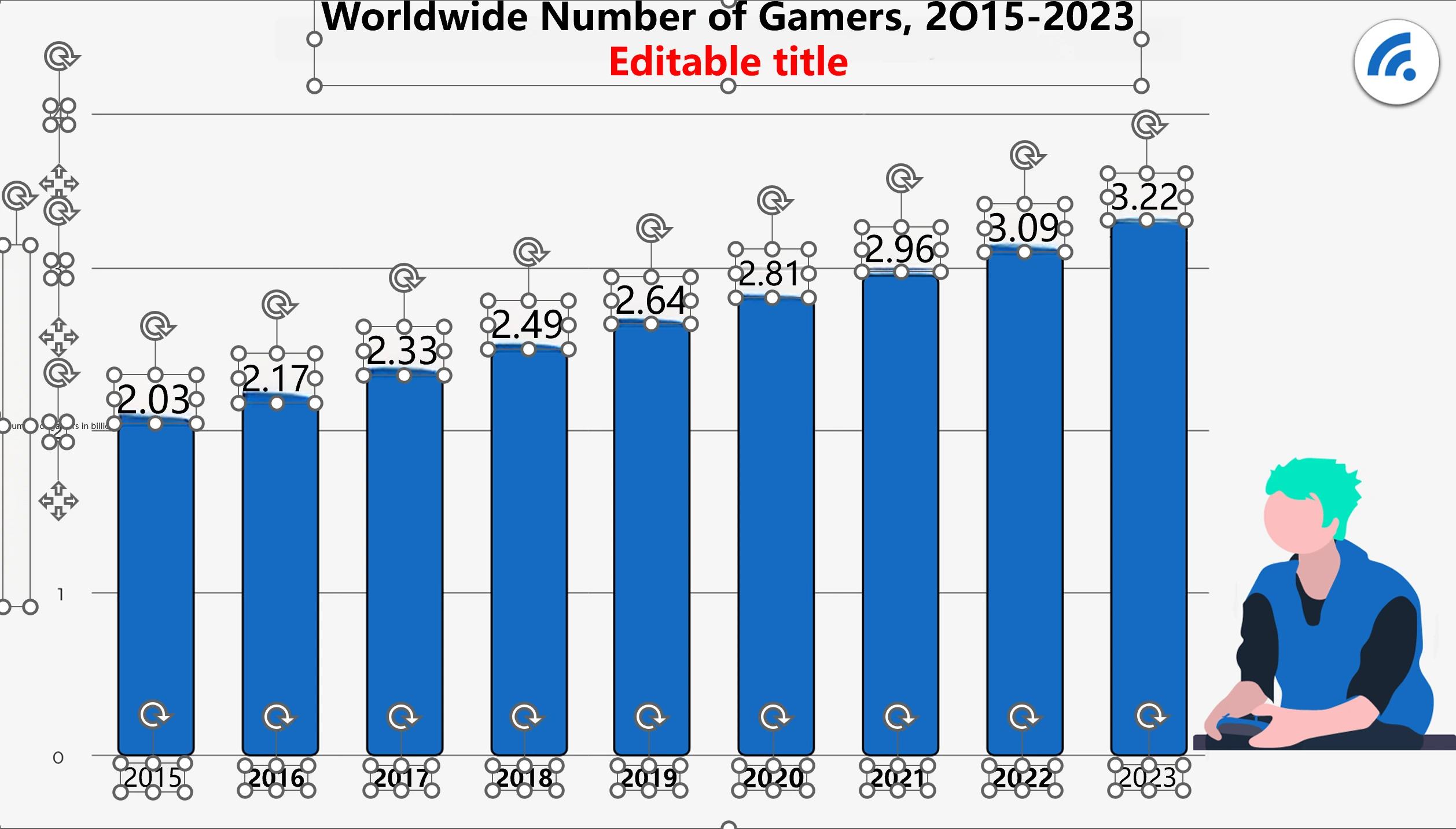
Change one word, check the repaired background, font, and line breaks, then save and reopen the file. For Full-element results, also move the picture you need to adjust and check what moves with it. The PowerPoint editability checklist covers these checks in detail.
How to choose between the three methods
| Method | Best for | Main advantage | Main limitation |
|---|---|---|---|
| Manual rebuild | Few pages, redesign at the same time | Maximum control | Time-consuming and repetitive |
| OCR then reformat | Getting the text content only | Faster than retyping | Layout still has to be rebuilt |
| Editable PPTX conversion | Keeping the current look while editing text | Closest to direct screenshot-slide editing | Standard and Premium clean focus on text; Full-element also separates many visual elements |
If you want to create a brand-new deck, manual rebuilding gives you more freedom. If you only need to extract the wording, OCR is often enough. If you want to preserve the current page appearance while editing the text directly in PowerPoint, editable PPTX conversion is usually the better fit.
Source-specific tips for screenshots, PNG/JPG, and photos
All three source types can go through the same conversion pipeline, but the preprocessing you need and the results you can expect differ.
Screen captures
Screenshots from PrintScreen, Snipping Tool, or browser extensions have sharp pixel edges and no geometric distortion. They produce the best OCR results. Tips:
- Use the clearest source available; sharp text edges matter more than a named resolution
- Capture the full page, not only a text region
- Save as PNG instead of JPG to avoid compression artifacts
- Larger, clearer text produces higher OCR accuracy
PNG or JPG File Exports
These usually come from AI slide tools (NotebookLM, Gamma, Beautiful.ai), design software batch exports, or assets someone else sent you. Tips:
- Prefer PNG over a heavily compressed JPG because sharper text edges are easier to recognize
- For multi-page sets, run one page first and batch after confirming quality
- If the aspect ratio is unusual, check whether the image was cropped before uploading
- PNGs with transparency are often rendered over white or a fixed background
Phone photos
Photographed slides are the hardest case because several physical factors stack up:
- Perspective: side-angle photos turn the page into a trapezoid. Shoot head-on, or use your phone's built-in scan feature first
- Glare and shadows: projector screens and printed pages reflect light. Pick the frame with the least glare
- Sharpness: focus on the text, turn off digital zoom, and stay close without losing focus
- Tilt: minor tilt can still work; straighten the image first when the page is visibly distorted
- Multiple shots: take two or three photos of the same page and use the clearest one
Source quality reference
| Source type | OCR accuracy | Layout fidelity | Preprocessing |
|---|---|---|---|
| Screen capture (PNG) | Usually good | Closer to the source | Usually none |
| AI tool PNG/JPG export | Usually good | Closer to the source | Usually none |
| Image-based PDF (per page) | High | Close to original | Upload the PDF directly |
| Phone photo (front-on, clear) | High | Slight drift | Straighten first |
| Phone photo (angled, glare) | Medium | Noticeable drift | Required |
| Old scans (low-res) | Lower | Significant drift | Rescan if possible |
Actual results depend on text size, sharpness, compression, and page complexity. The table compares relative risk; it is not an accuracy guarantee.
Frequently asked questions
Can I batch-convert PNG/JPG slides?
Yes. Select multiple PNG/JPG files in the upload area, check and arrange their order, then combine them into one PPTX. You do not need to make a PDF first. If you already have a multi-page PDF, upload it directly. Check the upload area for current file limits and available modes.
My phone photo is slightly blurry. Is it still worth trying?
Light blur usually still recognizes. Heavy blur (text edges smeared together) will cause OCR to drop or misread characters. Retake in better light, or move closer to the slide.
The page was photographed at an angle. Can it be fixed?
Minor tilt can still work. If the page is visibly distorted, use your phone's scan tool to straighten it before uploading.
Screenshot or PDF: which is a better source?
If you have the original PDF, upload it directly to avoid another screenshot and compression step. For images, use a complete source with clear text edges. Images with the same pixel width can still differ in text size and sharpness.
If my page is a photo, do I need to clean it up in Photoshop first?
Minor lighting differences do not need retouching if the text edges remain clear. If glare covers the text, take another photo; OCR cannot recover content that is not visible.
To replace icons, move illustrations, or rearrange cards after conversion, follow the steps for editing separated text and visual elements and check that the objects you need can be selected independently.
Limits to know before converting
There is an important boundary here: converting a screenshot into editable PPTX does not mean turning the entire page back into fully native PowerPoint objects.
Standard and Premium clean conversion rebuild the text layer. The following non-text elements usually remain in the background image:
- icons
- lines
- decorative shapes
- logos
- complex charts
Full-element editable PPT also separates visual elements, usually as individually selectable transparent images. It does not automatically restore chart data, animations, or original vector shapes. See the Full-element conversion examples and delivery details before choosing this mode.
If icons, illustrations, decorations, or background elements also need adjustment, read this guide to Full-element editable PPT.
How to choose
Rebuild manually when there are only a few pages and you also want a redesign. Use OCR when you only need the words. Convert to editable PPTX when the current appearance should stay in place while text, translations, or numbers change.
If the words in your screenshot are too small or a replacement sentence no longer fits, see how to enlarge the text and adjust its line breaks.