NotebookLM Slides Not Editable? 2 Ways to Fix It
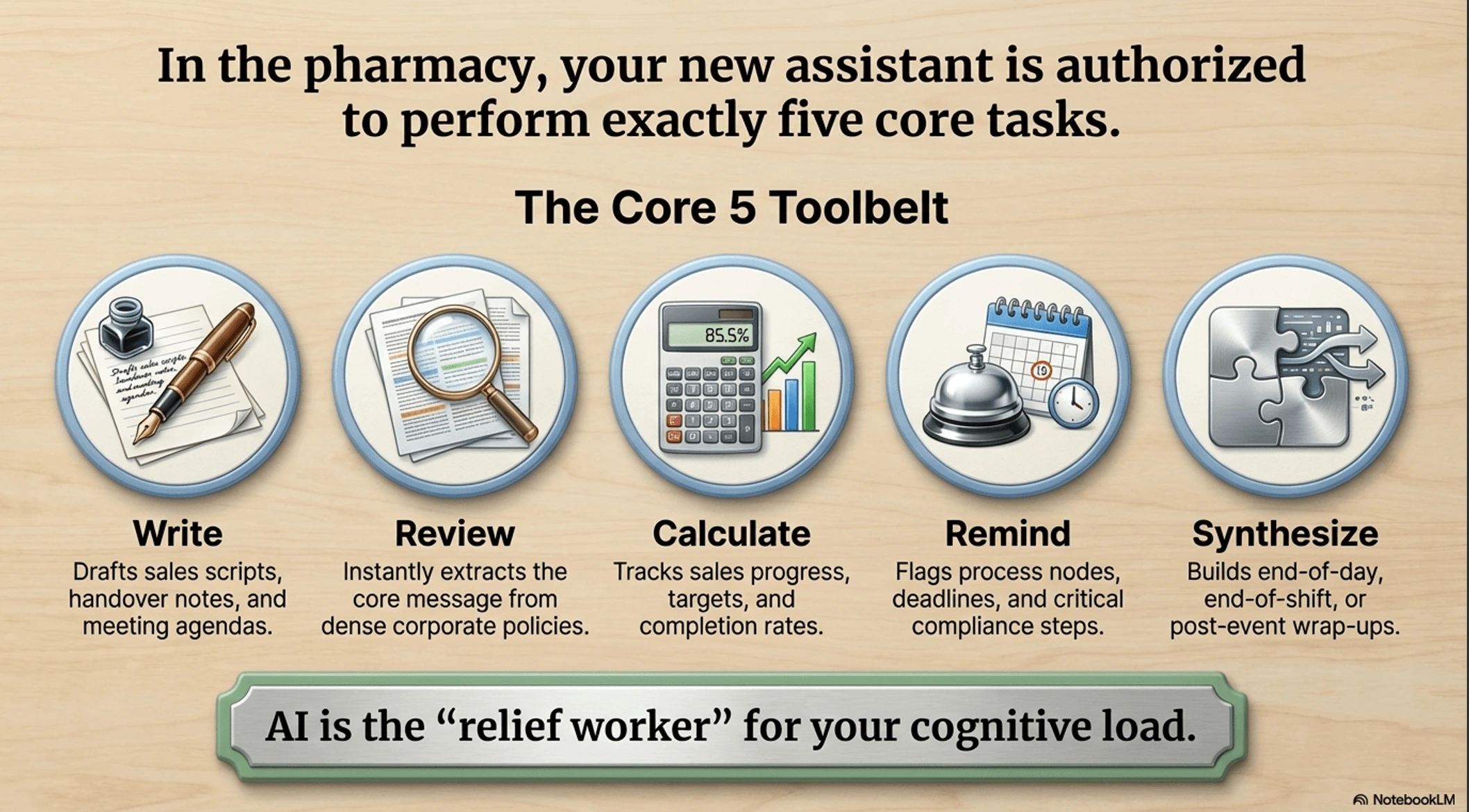
If your NotebookLM slides are not editable after export, you are not doing anything wrong. In many cases, the problem is not PowerPoint itself, but the fact that the exported pages behave more like image-based layouts than native PowerPoint text boxes.
This article focuses on one specific search problem: what should you do when NotebookLM slides are not editable? Below are the 2 most practical fixes, and which one makes more sense depends on whether you want to regenerate the whole slide or keep the current layout and only edit the text.
Why Are NotebookLM Slides Not Editable?
NotebookLM can produce impressive slide-style pages, but "looks like a PowerPoint slide" is not the same thing as "is a fully editable PowerPoint file." In practice, many exported pages are visually complete, yet the text does not behave like normal editable PPT text boxes.
You may notice things like:
- clicking text does not open a normal editable text box
- changing one sentence still requires another full AI generation round
- updating a number or fixing a typo becomes awkwardly indirect
- the final file does not behave like a standard PPTX with freely editable text
If your real goal is only to revise wording, update numbers, or translate the slide, this "not editable" issue quickly becomes frustrating.
Method 1: Keep Regenerating or Adjusting with AI
The first approach is to stay inside an AI workflow: keep adjusting the slide in NotebookLM, or move the content into another AI slide tool and generate another version.
Best for:
- changing the overall style or structure
- rewriting the slide rather than preserving it
- creating a fresh version instead of editing the current one
Pros: Flexible and useful when you want to redesign the page, change hierarchy, or regenerate the whole presentation direction.
Cons: If you only want to fix a typo, update a sentence, or replace a few numbers, this workflow becomes inefficient. You need more detailed prompts, and the AI may also change the layout, styling, or structure even when you only wanted a small text change.
Method 2: Convert the Export into an Editable PPTX
If your goal is to keep the current NotebookLM slide appearance but make the text editable, converting the export into an editable PPTX is usually the more direct path. 2pptx.com is built for this workflow: it preserves the original page appearance as the background while rebuilding detected text into editable PowerPoint text boxes.
This is especially useful when you need to:
- fix wording without redesigning the whole slide
- translate the content into another language
- update dates, names, or numbers
- keep the current layout because it has already been approved
Step 1: Confirm the Export Is Not Directly Editable
Open the exported NotebookLM file in PowerPoint and click on some text. If the result does not behave like a normal editable text box, or if the page acts more like one image-like layout, then the slide is not natively editable in the way most users expect.
Step 2: Upload the File to 2pptx.com
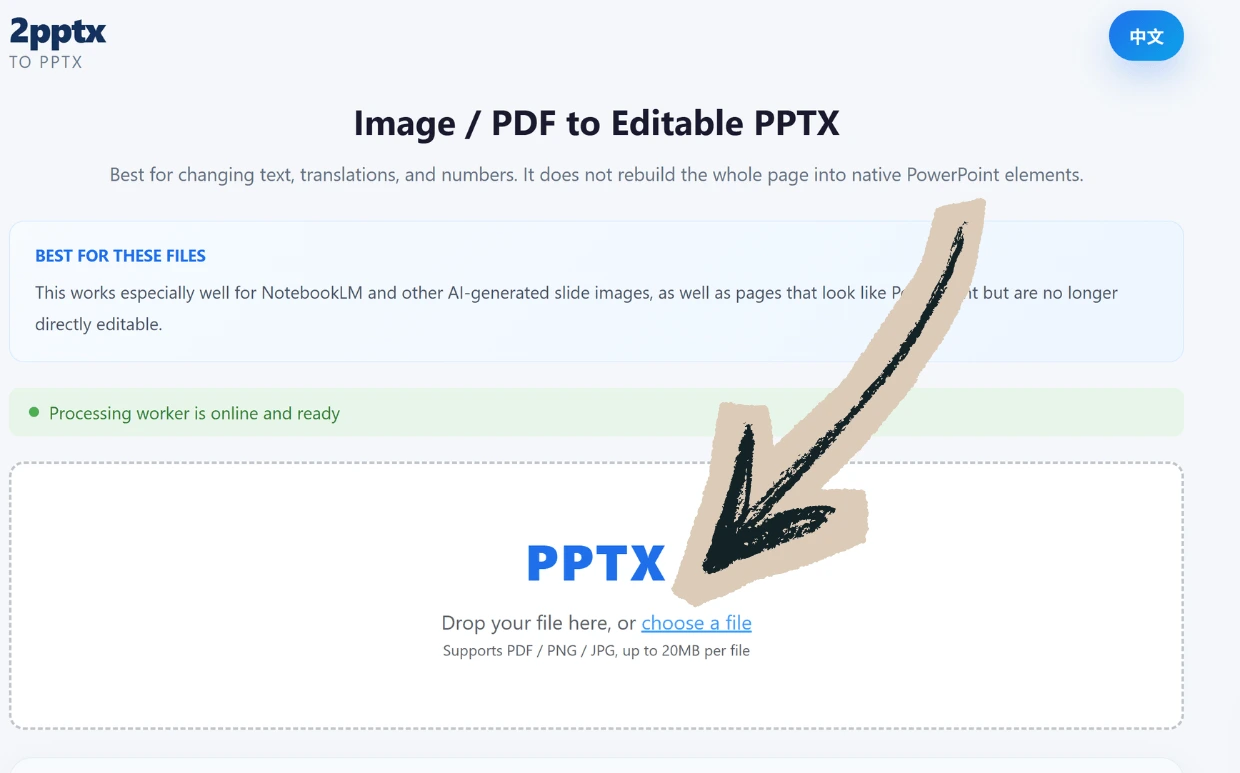
Go to 2pptx.com and upload the exported NotebookLM PDF or image file. Supported formats are PDF, PNG, and JPG, up to 20MB.
Step 3: Wait for Processing and Download
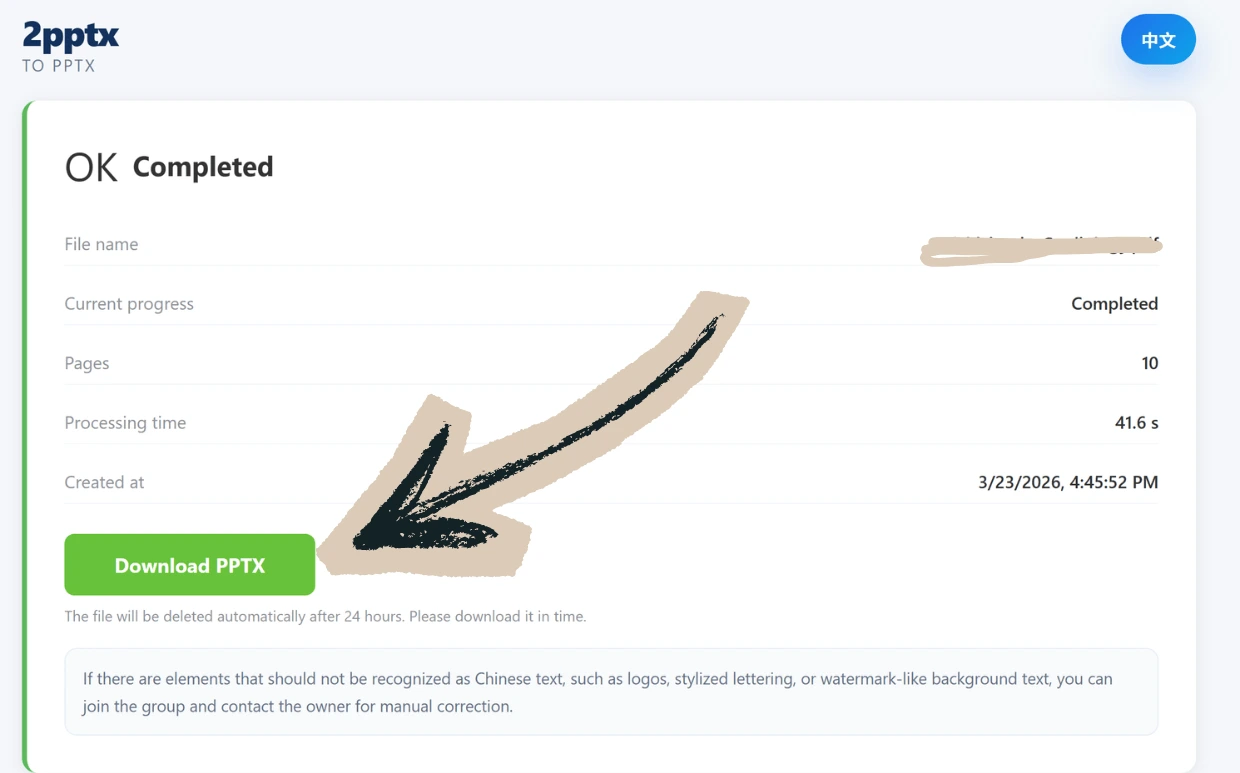
The system automatically performs OCR text recognition, background repair, and PPTX generation. After processing is complete, save the pickup code and download the editable PPTX.
Step 4: Open in PowerPoint and Edit the Text
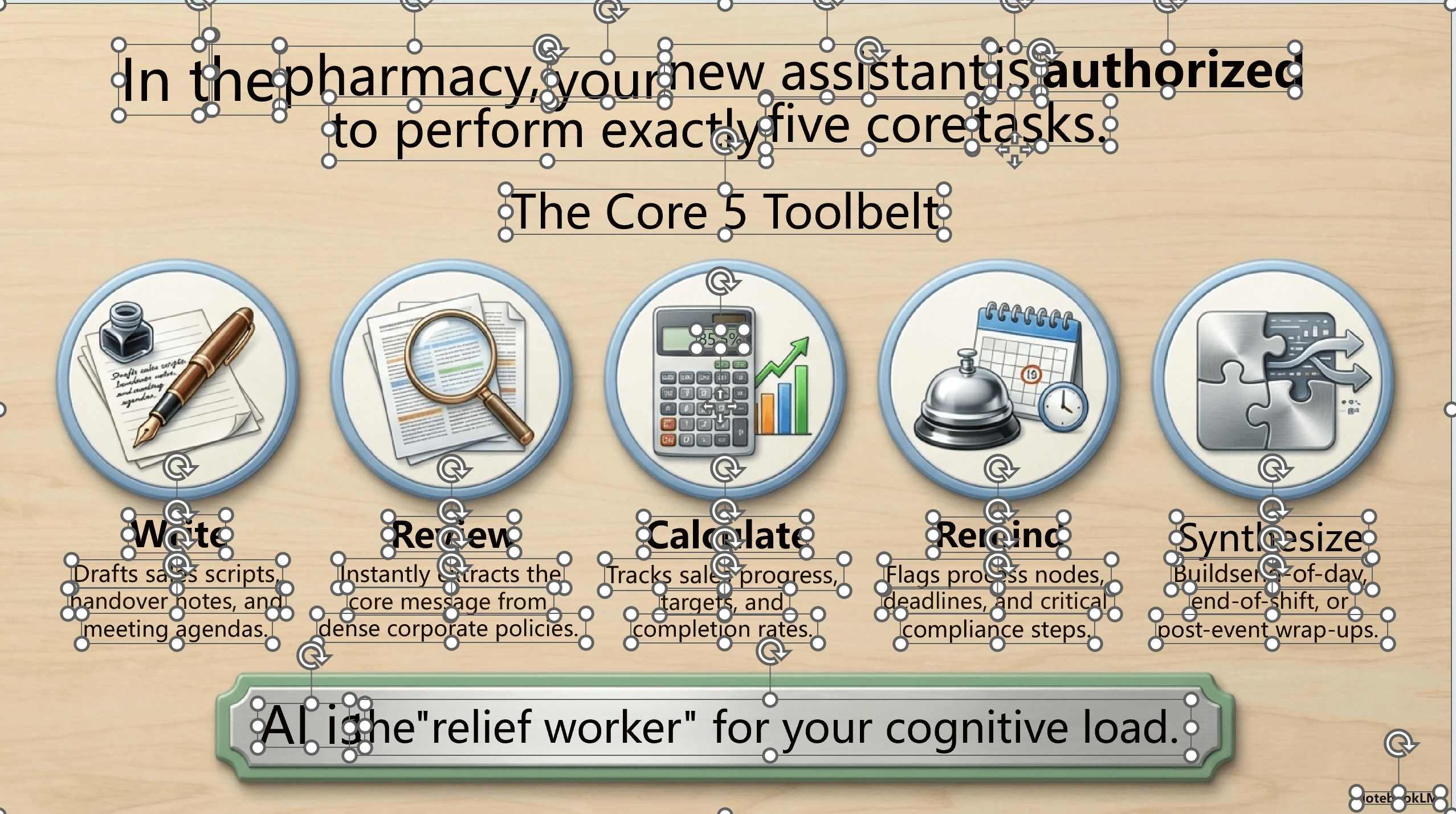
The downloaded PPTX keeps the original slide appearance, but the text is rebuilt into separate editable text boxes. You can now double-click headings, paragraphs, numbers, or translated text directly in PowerPoint.
Pros: Preserves the current visual layout; makes text directly editable; ideal for wording fixes, translation, typo correction, and number changes.
Cons: Charts, icons, shapes, lines, and other non-text elements still remain part of the background layer and are not individually editable like native PowerPoint objects.
Which Fix Should You Choose?
| Keep Regenerating with AI | Convert to Editable PPTX | |
|---|---|---|
| Good for overall redesign | Yes | No |
| Good for small text edits | Unstable | Yes |
| Preserves the current look | Usually unstable | Better |
| Double-click editing in PowerPoint | Usually no | Yes |
| Workflow cost | Repeated prompt tuning | Upload and convert |
Summary
If your main goal is to redesign the whole slide, change style, or restructure the content, staying inside an AI regeneration workflow is more flexible.
If your main goal is to keep the current NotebookLM slide layout while making the text editable inside PowerPoint, converting it into an editable PPTX is usually the more practical fix.