Combine multiple slide images into one editable PowerPoint
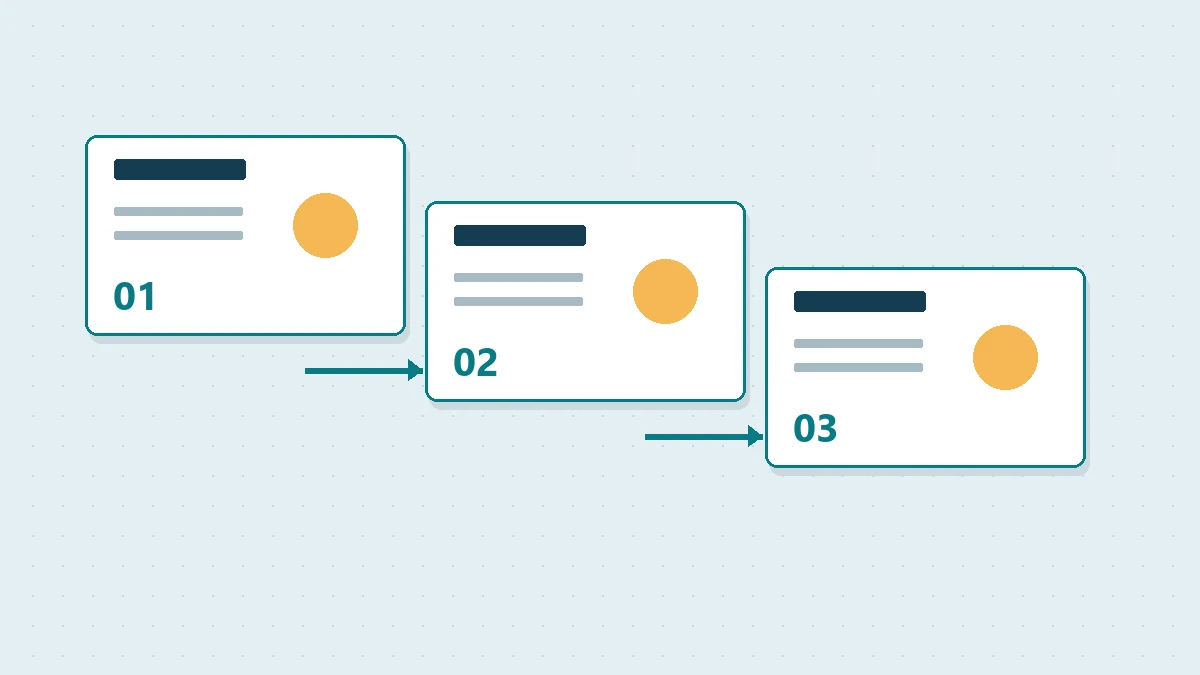
For a folder of lecture screenshots, choose all the images in the upload area and select Combine into one PPTX. The result has one slide per image. Choose Standard conversion if you want to edit the headings as well.
Put the cover first
Name a short test set 01, 02 and 03. For a longer deck, keep the leading zero on the first nine files so they are easy to find in your folder. Check the order shown in the uploader and drag a thumbnail if it is out of place. Look closely at nearly identical screenshots taken during a slide transition.
What happens to a portrait screenshot?
The first image sets the canvas dimensions. Later images are scaled proportionally and centered. With a landscape cover and a portrait phone screenshot, expect blank space to the left and right of the phone image. Crop a chat window or browser frame before uploading. If the portrait pages need to fill a portrait screen, convert those pages together in a separate file.
Choose what needs to be editable
For a title, date or a few lines of text, start with Standard. Try a single page in Premium clean if the text sits on a photograph. Confirm the number of images and the limits shown for the combined file before submitting. Multiple PDFs or PPTX files are processed separately. Use individual PNGs or JPGs for the image-ordering controls.
After downloading, find the cover, the second slide and the final slide in PowerPoint. Change a word in the second heading and compare the thumbnails with your source folder. For a single image, see the screenshot conversion guide.