Turn a two-slides-per-page PDF into individual PowerPoint slides
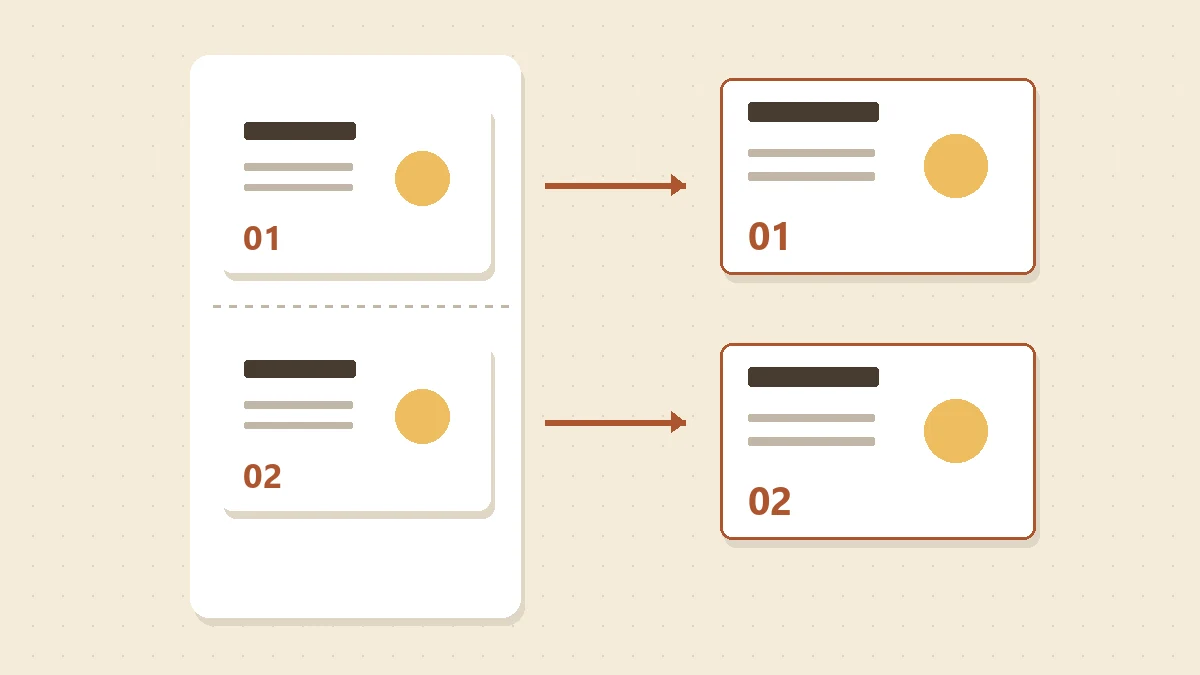
If your PDF shows two slide images on one sheet of paper, converting it as supplied gives you one slide per sheet. When the original deck is available, export the slides again with one slide per PDF page. That preserves small type and saves a cropping pass.
Make two crops from the first sheet
Download the two-sheet handout (PDF) and practice making four crops
Zoom in until you can identify all four edges of each slide. Export the sheet to a clear PNG and open two copies in an image editor. Crop the first copy to the upper slide and the second to the lower one. Exclude the binding margin, the handout page number and the strip of paper between the slides. Keep a page number that belongs to the slide itself.
Establish the reading order on two sheets
Name the first pair 01 and 02, then the next pair 03 and 04. On a four-up handout, use slide numbers or consecutive headings to decide whether to read across or down. Compare the aspect ratios of the first two crops. A strip of white paper accidentally left on one crop can make its content appear smaller in the combined deck.
Test a footnote before converting the batch
Upload the crops, choose Combine into one PPTX and check the thumbnail order. Try Standard conversion on a slide with a footnote first. Compare its smallest text, superscripts and decimal points with the PDF. If a digit is illegible in the source, use a clearer copy to verify it.
Once the test page reads correctly, convert the ordered set. For a PDF that already has one slide per page, follow the image-based PDF conversion guide.