Fix ghost text behind an edited PowerPoint title
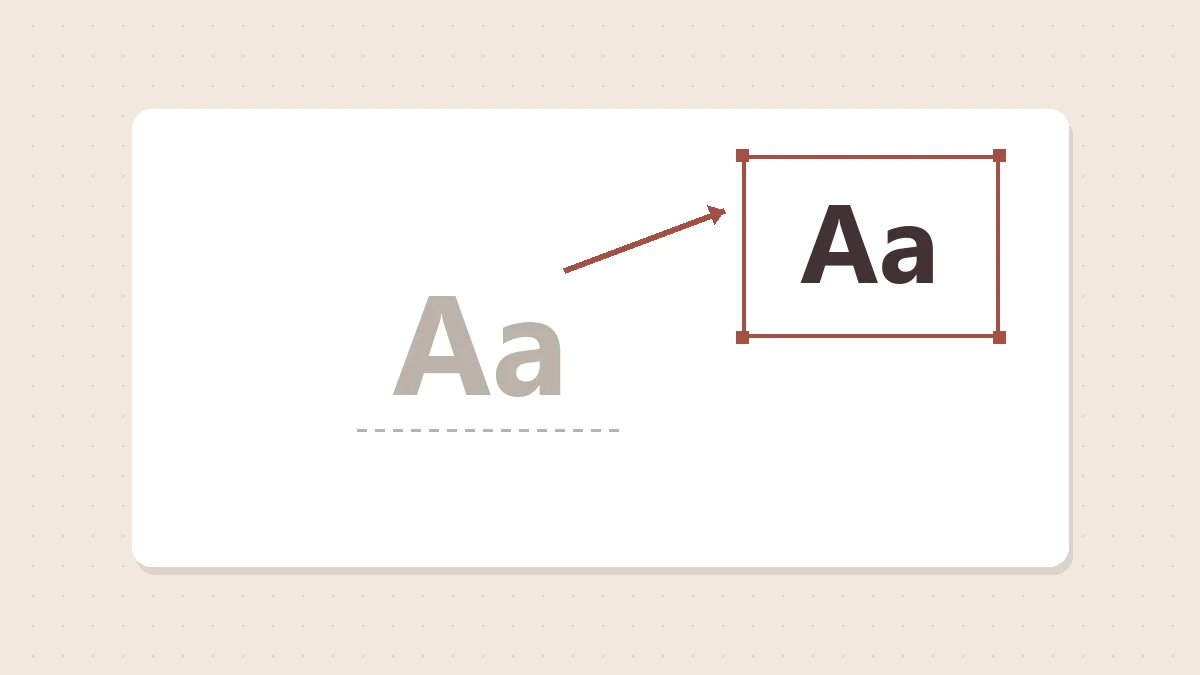
A shorter replacement heading exposes half of a letter from the old one. Duplicate the slide and move the new title aside. Click in the exposed area. A text cursor points to a second text object. If only the full background image selects, the old letter is part of its pixels.
Try Premium clean on the source page
When two text boxes overlap
Open the Selection Pane and hide the two objects one at a time. Identify the old title before deleting its box, then put the new one back. If hiding a picture also hides the lettering, restore it and inspect the picture itself.
When the old letters are in the background
On a flat fill, sample a nearby color and place a small shape with that fill and no outline over the mark. Bring the editable heading to the front and inspect the edges of the patch. On a gradient or a photograph, a flat patch can cut through a line or a face. Try Premium clean on the original image to rebuild a text-free background.
Compare repairs on the same source
In the linked example, a Chinese heading on an orange panel changes from “任务决策” to “任务规划.” Open the Standard sample and the Premium clean sample. On the second slide, move the edited text aside. Compare the fill behind it, the nearby lines and the edges of small icons. Undo the move and view both slides at presentation size.
For your own repair, start with the original PDF or image. A new screenshot containing overlapping old and new letters gives OCR two sets of marks to interpret. The same-input comparison has the source image and further examples.