Can't edit text in PowerPoint? Check access, masters and images

The PPTX opens, but you cannot click into its title. Dragging a number moves the whole slide. Or the body text works normally while a line at the bottom cannot be selected.
This can also happen with presentation pages made using NotebookLM, GPT Image 2.5, Doubao or Qwen. If the output is a full-page image, placing it in a PPTX does not make its words selectable or let you change their font size separately.
Check whether editing is allowed, then find out where the words live: a text box, a slide master, or an image. A text cursor inside a sentence confirms that you have reached editable text. The .pptx extension alone does not.
Start with the symptom you can see
- Nothing in the file can be changed: check viewing mode and editing permission.
- Clicking the words selects something else: check overlaps, groups and object locks.
- Body text works but a repeated label cannot be selected: check the slide master and layout.
- Words and illustrations move together: check whether the page is a single image.
If you have already confirmed that the slide is an image, prepare the clearest original or an image-based PDF.
Upload an image slide to rebuild its text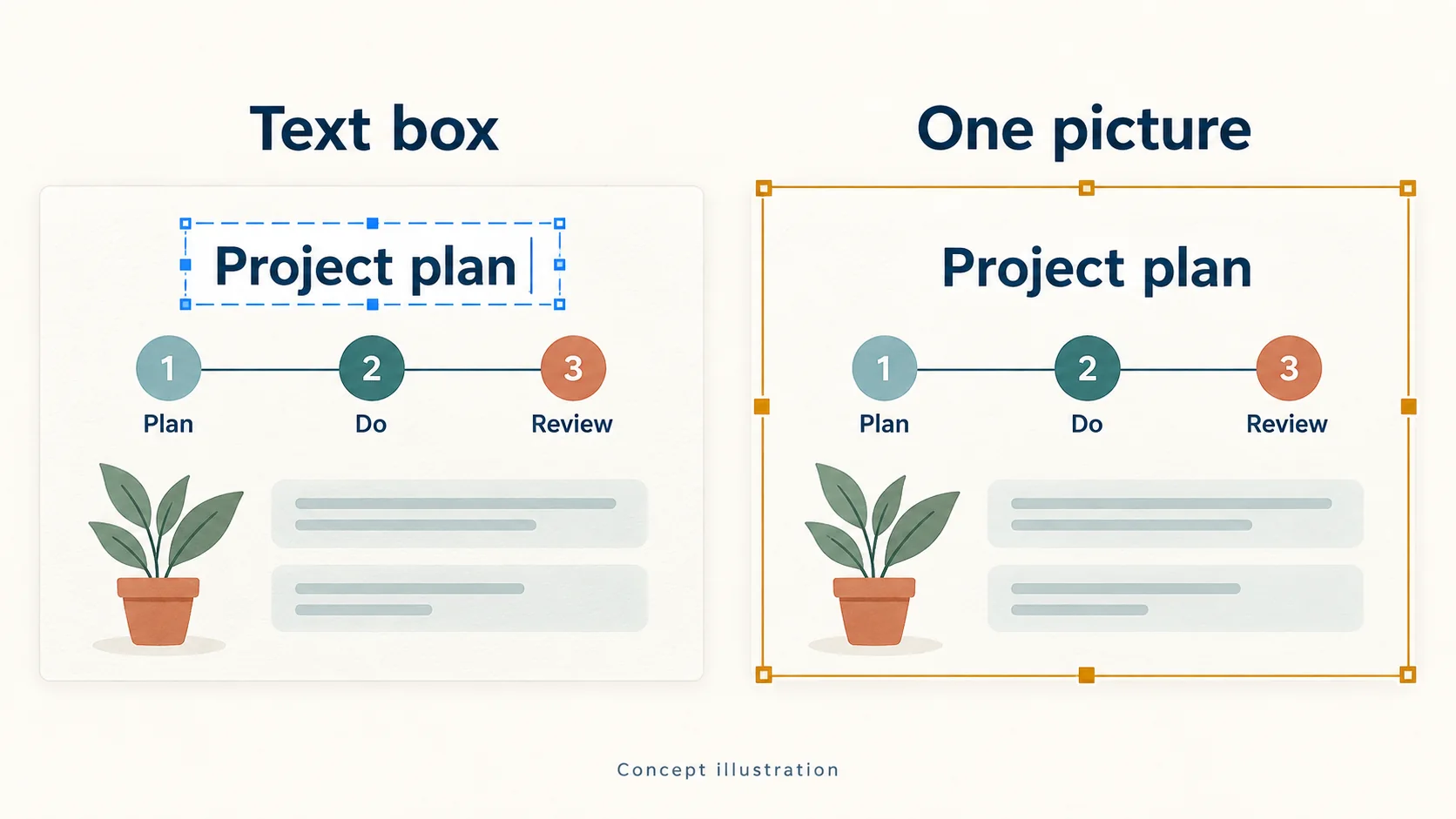
If nothing can be changed, check file access
Leave Slide Show or preview mode and open the normal editing view. Look for a Protected View, read-only, or viewing-only notice. If you cannot even insert a text box or move an ordinary object, resolve the file's editing state first.
The menu examples here use PowerPoint for Windows. For a file whose source and contents you trust, choose Enable Editing in the Protected View message bar when you need to make changes. If your organization prevents this, contact its administrator. For a shared link with viewing permission, or a file requiring a password to modify, ask the owner for editing access or an editable copy.
Keep global protection settings in place. Permission allows changes to the document; it does not turn words inside a picture into text boxes.
If you can select an object but cannot type, inspect it
Clicking a border selects the object. Click inside the text box to place a cursor, then try selecting a few words. If another shape or picture keeps getting selected, open Home → Select → Selection Pane. In PowerPoint for Windows, Alt+F10 also opens it.
Select objects in the pane one at a time. Temporarily hide an overlapping object if necessary, then show it again after editing. Object names can be changed, so a name such as "TextBox 1" is not proof of what the object contains. Check its selection boundary on the slide.
- For a group, expand it and find the text box inside. Ungroup it if you need to arrange its objects separately.
- If your version shows lock icons in the pane, check whether the object is locked and unlock it when you have permission to change it.
- A single PNG or JPG has no text objects for Ungroup to reveal.
Font controls apply to editable text. Enlarging a picture resizes everything in it. If you already have text boxes and need help with longer sentences, font sizes or line breaks, follow the guide to editing rebuilt slide text.
If a repeated label cannot be selected, check the master
When body text works but a fixed label in the same position on several slides does not, open View → Slide Master. Inspect the layout used by that slide and its parent master. Text boxes placed directly on a master or layout must be edited in that view.
A master change may affect several slides. To change just one, keep the original file and consider duplicating the relevant layout, editing the copy, and applying it only to the target slide. If the words are part of the master's background picture, they still need a replacement image or rebuilt text.

If the whole page is selected, the words may be pixels
If clicking the title, body and illustration produces the same full-page selection border, you are probably selecting a slide image. Scans, screenshots and slides made with AI image generation can have this structure. A picture used as the slide background may have no selectable object in Normal view at all.
Once you confirm the words are part of a picture, compare the three ways to edit text in a picture in PowerPoint: cover and retype a small correction, extract the words with OCR, or convert the page into editable text boxes.
Check the Selection Pane, master and background settings before deciding. Once you confirm there are no separate text boxes, ungrouping, renaming the file extension or changing fonts will not recover them. Use the author's original editable file if available. With only an image, you need to retype or recognize the words with OCR and create text boxes.
For example, an image-based slide exported from NotebookLM, or a complete lesson or report page generated with GPT Image 2.5, Doubao or Qwen, can look like a finished presentation when placed in a PPTX. Its title, body text and illustrations may still be part of one picture. Saving the file as PPTX does not automatically turn those words into text boxes.
Rebuild the text on these AI image pages before changing headings, numbers or font sizes. Use a clear original image or an image-based PDF. Image-based PPTX import requires exactly one full-slide picture per slide. If your export already contains editable text boxes, edit them directly. For NotebookLM-specific steps, follow the editable PowerPoint guide.
Convert AI slide images to editable PowerPoint
Choose a workflow for what you need to change
| What needs changing | Possible workflow | What to check |
|---|---|---|
| One short title or date on a plain background | Duplicate the slide, cover the old words and add a text box | The old text remains underneath; the patch may cover nearby content |
| Text on one or more slides with simple backgrounds | Use 2pptx Standard conversion to rebuild text boxes and repair the old text areas | Non-text content usually stays in the background; review recognition errors and old lettering |
| Words over gradients, textures or illustrations | Consider Premium clean to rebuild text and generate a background without lettering | Background details can change; compare them with the original |
| Text plus icons or illustrations that need moving | Consider Full-element editable PPT for separable visual elements | Visuals are generally transparent images; original chart data, native vectors and animations are not automatically recovered |
Keep the clearest source. Upload an image-based PDF directly instead of taking screenshots of every page. Image-based PPTX import requires one full-slide image per slide; ordinary native presentations with multiple objects do not fit that import path. For multiple images and page ordering, see the screenshot conversion guide. For separate visuals, read about editing text, icons and illustrations individually.

Try changing a sentence before handing over the PPTX
Open the result, put a cursor inside a title and replace a few words. Change a body paragraph's font size and line breaks. A file that opens and looks like the original still needs this editing check.
Move a text box aside temporarily to look for old lettering underneath, then undo the move. Compare numbers, names, fonts and background details with the source. For Full-element mode, try moving an icon independently and confirm that the parts you need can be selected. Save and reopen the file in the software you will use, checking font substitution and text overflow.
Once you have confirmed that the source is a picture, try rebuilding the text on one page before processing the remaining slides.
Frequently asked questions
Is a PPTX file always editable?
A PPTX can contain text boxes and shapes, or just pictures. What you can edit depends on the objects actually stored in it. Inserting an image into a PPTX does not automatically recognize its words.
Could a missing font explain why I cannot select the words?
A missing font more often causes substitution, different letter shapes or changed line breaks. If you can only select one whole picture, inspect the slide structure first. Installing a font does not create text boxes from image pixels.
Can one presentation contain both editable and image slides?
Yes. A single slide can also contain text boxes alongside words embedded in an image. Inspect the specific area you need to change, keep content that is already editable, and rebuild only the image areas or pages that need it.