Image to editable PPT: separate text, icons, and illustrations

If clicking a heading or illustration selects the entire slide image, you need to rebuild its text and pictures as separate objects. 2pptx's Full-element editable PPT mode rebuilds editable text boxes, separates visual content where possible, and assembles the objects into a PPTX. After downloading it, you can change the wording and move, resize, or replace the pictures that have been separated.
Start with the real separation screenshot below, then download a worked example with an edited heading and four moved pictures. Open it in PowerPoint and try another edit yourself.
Upload a page in Full-element mode
Choose a mode for the parts you need to change
Changing a sentence and rearranging illustrations need different objects. For a direct comparison, see the three modes tested on the same input.
| What you need to change | Mode to consider | What you mainly edit afterward |
|---|---|---|
| Headings, body text, or numbers on a simple background | Standard | Rebuilt text boxes; visual content usually stays in the background image. |
| Text over a gradient, texture, or illustration | Premium clean | Rebuilt text and a processed background; compare the area around the old text. |
| Text plus icons, people, or illustrations | Full-element editable PPT | Text boxes and the pictures that have been separated. |
Visual elements in a Full-element result are usually transparent images. You can move or replace them. Editing vector paths, changing a chart through its data, or making an arrow follow a node requires native vector artwork, charts, or connectors; those structures and the original animations need separate work. Source clarity, overlap, and visible boundaries affect how much can be separated.
A real screenshot: inspect the boundaries of each object
This daily-routines education slide has three cards, a heading, descriptions, a sun icon, and illustrated scenes. The user-provided screenshot shows the actual separated result, with its original Chinese text and selection handles preserved. The source slide was AI-generated.
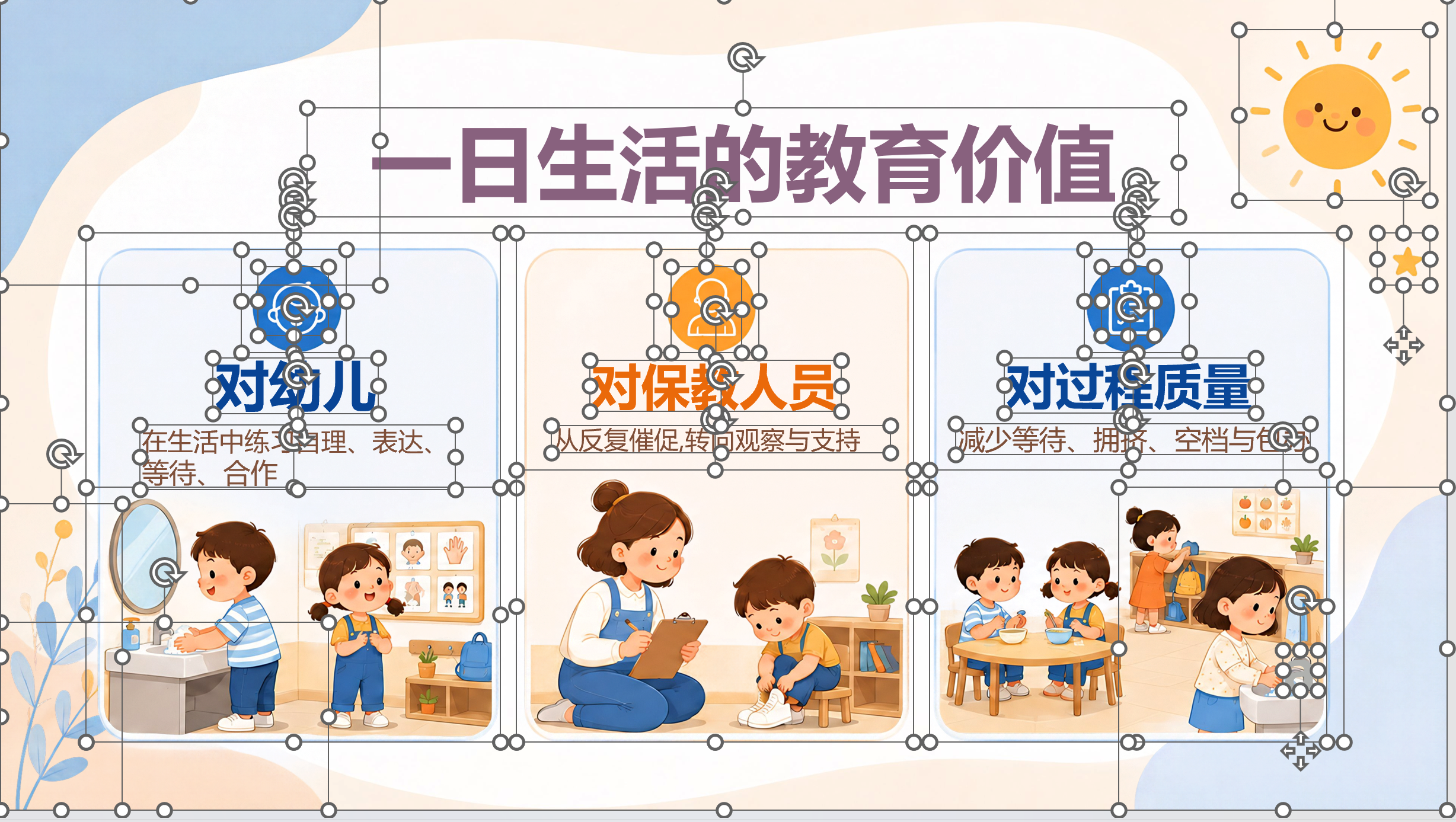
In your own file, clear the selection and click the sentence you want to change. A text cursor lets you edit the words. Then select one icon and check whether the boundary includes just that icon or also a person, decoration, or card behind it. The selected boundary tells you what will move together.
A person and the furniture behind them may still be one picture. Move that picture to reposition the scene; replacing just one chair requires further work inside the image. For overlapping objects, open Home → Select → Selection Pane in PowerPoint, select items individually, and temporarily hide an upper object before restoring it. Search for “Selection Pane” if your version puts it elsewhere.
This screenshot helps you inspect object boundaries. The next example includes an actual saved edit and a downloadable PPTX.
Download a worked example: change a heading and move four pictures
On October 19, 2026, we converted the AI-generated project-delivery slide below using Full-element mode. In a copy of the converted slide, we changed the Chinese heading from “Product project delivery path” to “Product project delivery plan,” swapped the clipboard and tablet, and swapped the blocks and checklist. The file was saved and reopened in Microsoft PowerPoint.


We also moved five separate text boxes inside the artwork along with their corresponding pictures; the stage numbers and descriptions underneath stayed in place. These swaps demonstrate independent movement. Before using the page in a presentation, match each description to its new picture.
Download the Full-element PPTX example (about 8.9 MB). Slide 1 is the converted result; slide 2 is the copy with edited text and moved pictures. The shared two-page input PDF contains this project-delivery image on page 1 and a robot slide on page 2.
- Open the example, duplicate slide 2, and replace the heading with your project name.
- Select the tablet picture, move it slightly, and undo to check its boundary. Reposition it as needed or resize it proportionally from a corner.
- Check the descriptions, picture edges, and stacking order. Save a new PPTX, close it, and reopen it to confirm your changes remain.
Follow the PowerPoint editability checks for a fuller inspection of text, fonts, and pictures. To use the extracted artwork in another deck, see reusing icons and illustrations across presentations.
Try separating a page from your own file
Convert your image, PDF, or image-based PPTX
- Use a clear PNG/JPG or image-based PDF. Upload the original PDF when available to avoid losing small text and edges through repeated screenshots. Image-based PPTX imports require one full-slide image per page.
- Open the Full-element upload area, choose the file, and inspect the pages to process. For several images, see the screenshot conversion guide for preparation and ordering.
- Review the page count, price, and service details, then submit. Current charges are shown on the submission screen and the pricing page.
- Download the assembled PPTX when it is ready. Open it in PowerPoint and keep an untouched copy for comparison.
- Change one heading and move one target picture before working through the rest of the deck.
If the source is blurry, look for the original export. Check small text sentence by sentence and inspect whether overlapping artwork has been separated far enough for the edits you need.
Finish the text before rearranging the pictures
Edit the heading and body copy first, checking numbers, names, and line breaks. If the font differs from the source, choose a consistent font before adjusting text-box width and size to fit the new wording.
Before moving a picture, find its heading, description, and number. Select the objects that need to move together so the illustration stays with its explanation. The image-slide layout guide covers spacing and alignment.
To replace a logo or product picture, note its position and size, delete the separated old picture, and insert your own asset. Check its proportions, crop, and stacking order using the picture replacement guide. If you only want to remove a decoration, use the removal and background checks to inspect the area it leaves behind.
Clear all selection handles and review the slide at presentation size. Inspect moved areas for old text, edge fragments, and visible repairs. Save and reopen the file in the software used for delivery to catch font substitution or overflowing text. For diagrams with many nodes and arrows, follow the guide to diagram labels, artwork, and connections.
For separate image files to share or use in other documents, see exporting transparent PNGs from image slides, including object boundaries, background checks, and pixel dimensions.
Frequently asked questions
Can I insert a PNG or JPG and ungroup it to edit the words?
A regular image stores pixels, so ungrouping cannot recover its text objects. The text needs recognition and the artwork needs separation before a PPTX with individual objects can be assembled. If the original already contains grouped text and pictures, you can ungroup those objects directly.
Why can a PPTX still contain one flat image per slide?
A PPTX can hold a full-slide picture. Inspect the structure first: convert image slides when that is all you have, or edit existing native text and graphics in the original file. See why a PDF-to-PPT result can remain a single image.
Can I recolor one part of a separated icon as if it were a native shape?
Separated icons are usually transparent pictures, suitable for moving, resizing, and replacing. For a precise change to one stroke or fill, replace the icon with editable SVG artwork or native shapes that support the change.
Can I use this with AI-generated slide images?
Yes. Keep the clear image or exported PDF and choose a mode for the text or artwork you need to edit. The source slides here were AI-generated; the selection screenshot and saved editing export show actual results. Test one of your pages to check text recognition and separation boundaries.