How to edit text in AI-generated slide images in PowerPoint
A practical sequence for editing AI slide images
- Click the words on the AI-generated page. If you can only select the whole image, upload the source image or image-based PDF and convert it to a PPTX with text boxes.
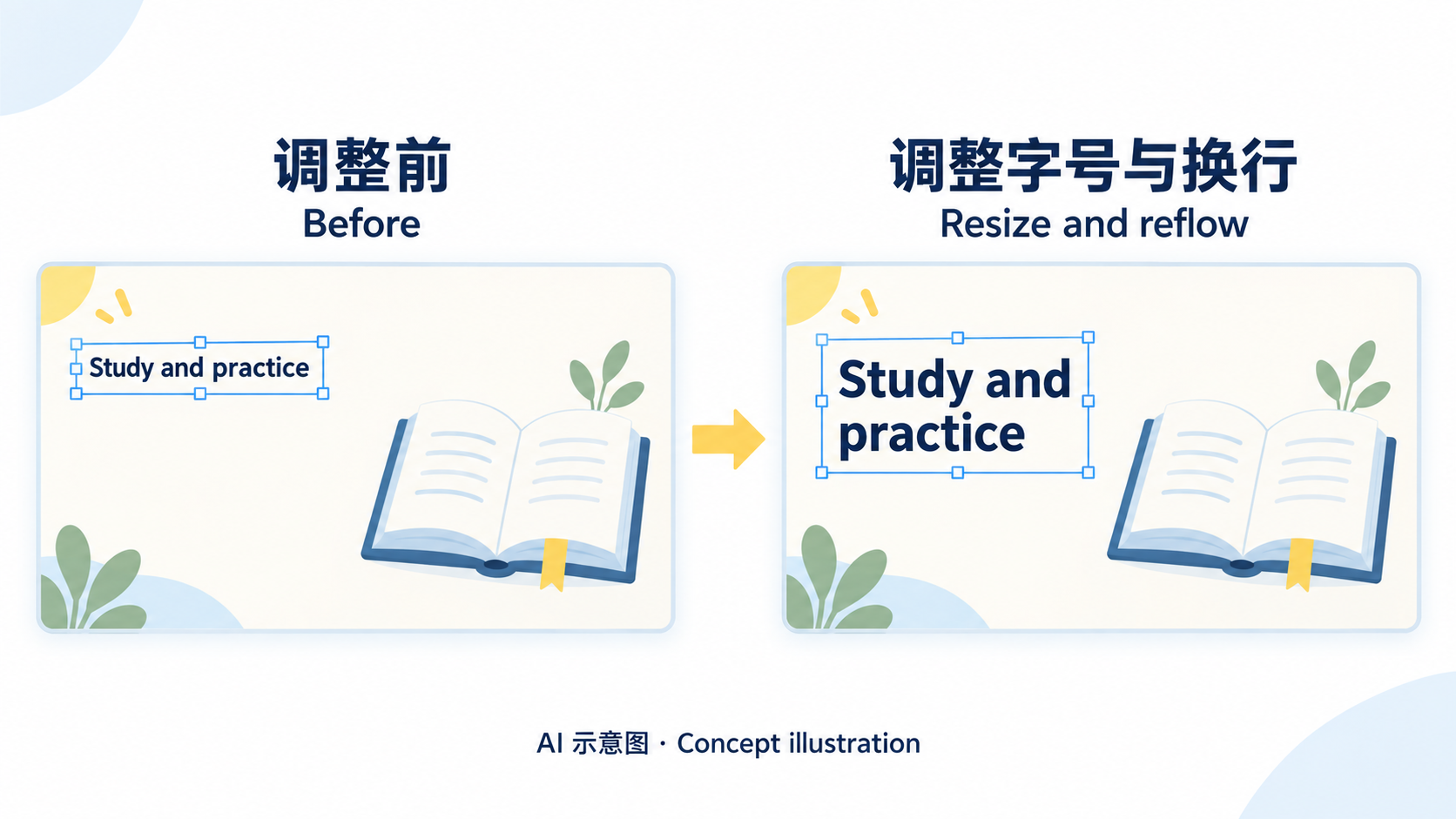
- Select the words inside a text box and change the font size on the Home tab.
- Make room for the larger text. Check line breaks, nearby illustrations, and any old lettering left in the background.
Standard and Premium clean conversion in 2pptx rebuild editable text. Consider Full-element editable PPT when you also need to move illustrations or icons.

An AI tool has produced a slide with the layout you wanted, but now you cannot change its heading or enlarge the body text separately. This can happen with image-based pages exported from NotebookLM, or with full-page images made in ChatGPT, with GPT Image 2.5, or in Doubao and then placed in PowerPoint. The words and illustrations are part of the same picture.
If you are unsure whether the words are in an image or affected by file access, grouping or a master, start with the PowerPoint text editing troubleshooting guide.
To edit the words in an AI-generated image separately, recreate them in text boxes. If the illustrations and general layout already work, convert the existing image to a PPTX with editable text to change a heading, update numbers, or enlarge a paragraph. Then adjust the font size, line breaks, and position, and inspect the background where the old words used to be.
Why text in NotebookLM, ChatGPT, and Doubao slide images can be hard to edit
When the output is an image, its heading, body text, icons, and background are drawn into one picture. Placing that picture in PowerPoint, or collecting several pictures in a PDF, does not create text boxes. Conversion needs to recognize the words, process the background under them, and place editable text back on the page.
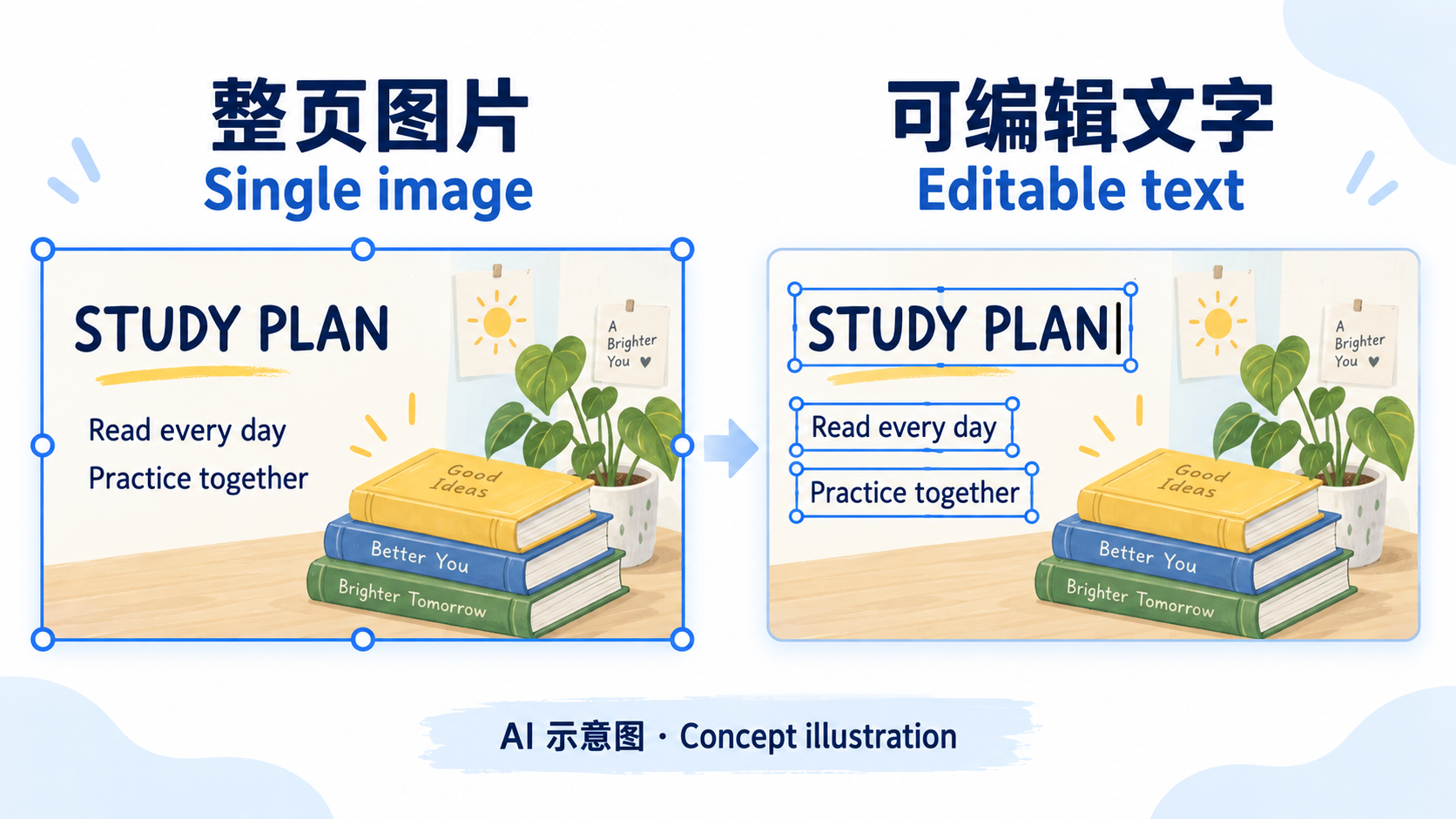
- NotebookLM: inspect the exported file first. Edit any existing text boxes directly. For an image-based PDF or full-page pictures, follow the NotebookLM-to-editable-PowerPoint steps.
- ChatGPT / GPT Image 2.5: when you generate and save a complete slide as an image, its words remain pixels. Keep the clear original image and rebuild its text as needed.
- Doubao: a classroom slide, study card, or presentation page made with image generation can follow the same editing process once saved as a picture. Inspect the file's structure, regardless of the tool that made it.
For example, an AI-generated classroom slide may already have a book illustration, a plant, and a heading arranged as you want them. To rename the lesson or make the body text easier for students to read, you need text that can be edited separately.
Check whether you selected text, a picture, or a group
A file ending in .pptx can still contain one flat image per slide. In editing view, click the line you want to change and check the selection handles and cursor.
| What happens | What to do |
|---|---|
| You can place a cursor in the sentence and select individual words | Edit the existing text, font size, or color |
| You select a PNG/JPG, and the text moves with the illustration | Retype or recognize the words and put them in text boxes |
| You select a group of objects | Check for text boxes inside the group; Ungroup separates existing objects but cannot recover text from a flat PNG/JPG |
If objects overlap, inspect them in the Selection pane. In PowerPoint for Windows, press Alt+F10 to select or temporarily hide individual objects. Edit existing text boxes directly. Rebuild the text when the page is a single picture.
Choose a mode for converting AI slide images to editable PPT
An AI-generated slide might have a plain background or dense gradients, textures, and illustrations. To continue editing within the existing layout, use 2pptx to rebuild the text and background layers. Check what lies behind the words and whether nearby pictures also need to move:
| What you need | Mode to consider | What to check |
|---|---|---|
| Text edits on a simple background | Standard: repairs old text areas and rebuilds text boxes | Recognition errors, leftover text, fonts, and line breaks |
| Text over gradients, textures, or illustrations | Premium clean: uses AI to regenerate a background without text and rebuilds text boxes | Background details may change; compare them with the source |
| Text edits plus moving icons or illustrations | Full-element editable PPT: rebuilds text and separates visual elements where possible | Which objects can be selected individually, image edges, and overlaps |
In Standard and Premium clean modes, non-text content usually stays in the background image. The main difference is how the background is processed. Premium clean cannot guarantee an exact match for complex textures. See the conversion mode guide for the full comparison.
- Save the clear original PNG/JPG generated by the AI tool, or use a PDF exported from a tool such as NotebookLM. 2pptx also accepts PPTX files with exactly one full-slide picture per page. Mixed PPTX files containing text boxes, shapes, or multiple pictures do not meet that import requirement. Export the pages you need as a PDF if you only want to process their image content.
- After uploading, check the pages, mode, and price before submitting. Try a representative page before deciding whether to process the rest.
- Download the finished PPTX, save a working copy, and keep the source image for comparison.
- Click into a heading and try changing a few words. Check the recognized numbers, punctuation, and paragraphs.
If you are unsure whether your AI export needs conversion, see how to check and prepare AI-generated slide files. Pages whose text is already editable can be changed directly.
Resize and replace the text after conversion
Make the words bigger without resizing the picture
Click into a text box, select the words, and change the font size on the Home tab. For example, try changing 24 pt to 30 pt and see whether the line still fits. Those numbers are an editing example; the right size depends on the slide and the amount of text.
If a line wraps unexpectedly, check the font first, then adjust the text box width, position, or line break. Dragging a text box border mainly changes the space available for its contents. Use the font size control to set the size of the letters. Review the whole slide afterward for text running off the edge or covering another object.
Make room for a longer sentence or a translation
Changing "Study plan" to "Study and practice plan for this semester" may turn one line into several. Shorten the wording, break it at a natural point, or widen the text box. If an adjacent illustration is a separate object, you can also move it to make room. An illustration that is still part of the background cannot be dragged away on its own.
For a translation, paste the translated wording you have prepared into the text box. Check that the font supports its characters and that the line spacing works. This is a manual text replacement step; conversion does not translate the content for you. Avoid shrinking all the words just to fit the original box.
OCR may split a paragraph into several text boxes. To lay it out as one paragraph, create a larger text box, put the words in the correct order, then remove the corresponding old boxes. Check for omitted or duplicated text afterward.
When larger text gets in the way of an illustration

On this slide, books and decorations sit beside the text on the right. Suppose you want to replace the middle line about class performance with a longer sentence. First adjust its line breaks and text box width. If it still looks cramped and the book is a separate object, move the book slightly to the left.
These are suggested edits for this layout. The screenshot shows selected objects, not a before-and-after text change. In Full-element mode, separated icons and illustrations are usually transparent images you can move, resize, or replace. They are not native PowerPoint vectors with editable paths, strokes, and fills. Some content may remain joined together, so inspect the actual file.
For more layout changes, see how to edit separated text, icons, and illustrations. If you only need to change sentences and font sizes, Standard or Premium clean conversion is usually enough.
Try your own page and check what you can adjust separately
Check the background, old lettering, and layout
After replacing a sentence, temporarily move its text box aside and inspect the area underneath. If old lettering remains, the background needs more cleanup. Putting new words over it can leave doubled letters. Undo the move after checking to restore the text box position.
Background repair has limits. Standard conversion fills the old text areas; Premium clean regenerates a background without text. Textures, lines, and small illustrations may change. Compare any logos, number labels, or detailed diagrams that need to remain accurate with the original. If you can obtain the original editable file, use it first.
- Check names, dates, numbers, and punctuation, especially where the source text was small or blurred.
- Review fonts, weight, line breaks, and alignment. An image does not preserve the full font settings, and conversion cannot guarantee an exact match.
- Zoom in on the old text areas, then review the whole slide for patches, seams, and overlaps.
- Reopen the PPTX in the software you will use to present it. Check for overflow or different line breaks if a font has been substituted.
Can I patch a single date directly in PowerPoint?
If a date or short heading on the AI-generated page sits on a plain background, duplicate the slide first. Cover the old words with a matching rectangle without an outline, then insert a text box with the replacement. Check that the patch leaves nearby content visible and that the font and position fit.
This only covers the old lettering; it remains in the image underneath. Move the rectangle and replacement text together. On a gradient, photo, or illustration, a solid rectangle can leave a visible patch that needs more background work.
Frequently asked questions
Can I make text in a screenshot bigger just by enlarging the image?
That enlarges the entire image. Cropping changes which area is visible. To change the font size while keeping illustrations at the same size, recreate the text in text boxes. Recognition can still misread small, blurred words, so use a clearer source when available.
Can I change the color of words inside a picture?
Once the words are in a text box, select them and change the font color. PowerPoint's font color button cannot separately change words that are still pixels in a PNG/JPG.
Does keeping the background mean an exact visual match?
No. Text areas need to be cleaned or rebuilt, which can change textures and small details. Fonts and line breaks also need checking. A screenshot alone cannot guarantee recovery of all the original PowerPoint objects and settings.
Will changing a chart number update its bars?
Editing a text box does not update the chart behind it. Conversion does not automatically recover the original chart data. For a chart that updates from data, obtain the source values and rebuild it with PowerPoint's chart tools.
To prepare another language version, follow the image-slide translation and bilingual layout guide, with a bicycle-parts practice deck for fitting translated labels.