Split One Image-Based Slide into Multiple Editable Slides
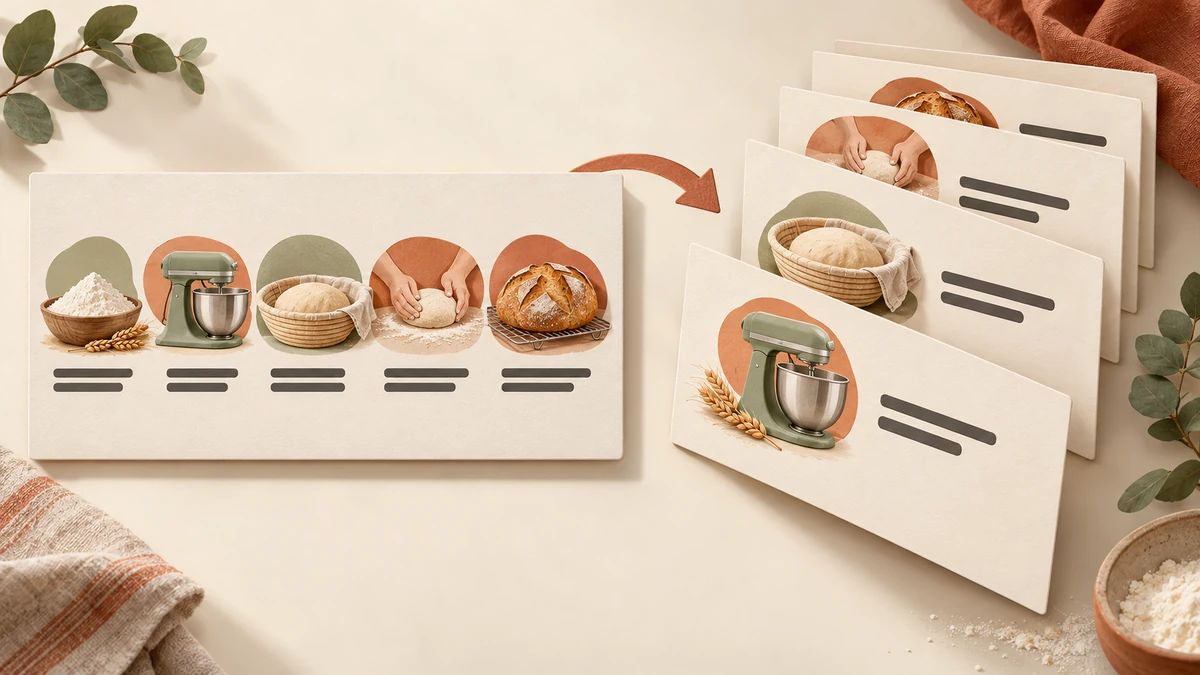
A slide image with five small steps can be hard to present on a projector. To give each step its own slide and keep editing the words, first convert the image into a Full-element PPTX. Then move each step’s picture, heading and description onto a separate slide in PowerPoint.
This guide uses a real bread-making slide separation case. Compare the source image and selection screenshot, follow the layout steps, and download a five-slide editable example.
Upload the image or PDF you want to split
Decide what belongs on each slide
The source runs from left to right: prepare ingredients, mix the dough, let it rise, shape and bake, then cool and share. Each step has a picture, a name and a short description, making it a useful candidate for five separate slides.

Give each new slide a clear subject, then choose the objects it needs. One subject might need two pictures, while a complex diagram may work best kept together. You can retain the overview at the beginning to introduce the sequence.
| New slide | Content to bring across | Layout focus |
|---|---|---|
| Prepare ingredients | Flour-pouring picture, heading and description | Keep the action and bowl fully visible. |
| Mix the dough | Mixer picture, heading and dough description | Leave enough width for the text. |
| Let it rise | Dough-basket picture, heading and description | Enlarge the main picture so details are easier to see. |
| Shape and bake | Shaping picture, heading and oven description | Keep picture and text positions consistent. |
| Cool and share | Bread-and-oven picture, heading and description | Allow the longer final line to wrap naturally. |
Convert the image into selectable text and pictures
Upload a clear source image or the PDF containing it to 2pptx. Choose Full-element editable PPT, review the pages and price, and submit. Download the completed PPTX, then arrange the separate slides in PowerPoint. Text is rebuilt as editable text boxes; separated artwork remains individual images that you can move, resize or delete.
If you only have an image-based PPTX, export the required slide as a clear image or PDF first. For file preparation and mode selection, follow the guide to separating text and pictures from a slide image.

The real screenshot shows separate selection boundaries around the five step pictures, their names and descriptions. For the first step, select the picture, its heading, its description and any label background you want to keep. The large page background can stay on the original slide. A consistent plain background gives the new explanation slides more room.
Copy one step’s picture and text to a new slide
These steps use desktop PowerPoint for Windows. Save a working copy of the PPTX so you can refer back to the converted page.
- Open Home → Select → Selection Pane. Find the step’s picture, heading and description. Selecting items in the pane helps when objects overlap.
- Hold Ctrl to select the related objects, then choose Shape Format → Group → Group. Move the group slightly to check that the heading and description follow, then undo the move.
- Copy the group, insert a blank slide and paste it. Keep the pasted content as objects so its text and picture remain selectable.
- Position the picture, then select the text inside the group to adjust font size and text-box width. Ungroup the objects when you want to arrange the picture and text in separate columns.
- Once the first explanation slide is laid out, duplicate it and replace its contents with the next step. Keep the same heading position and spacing.
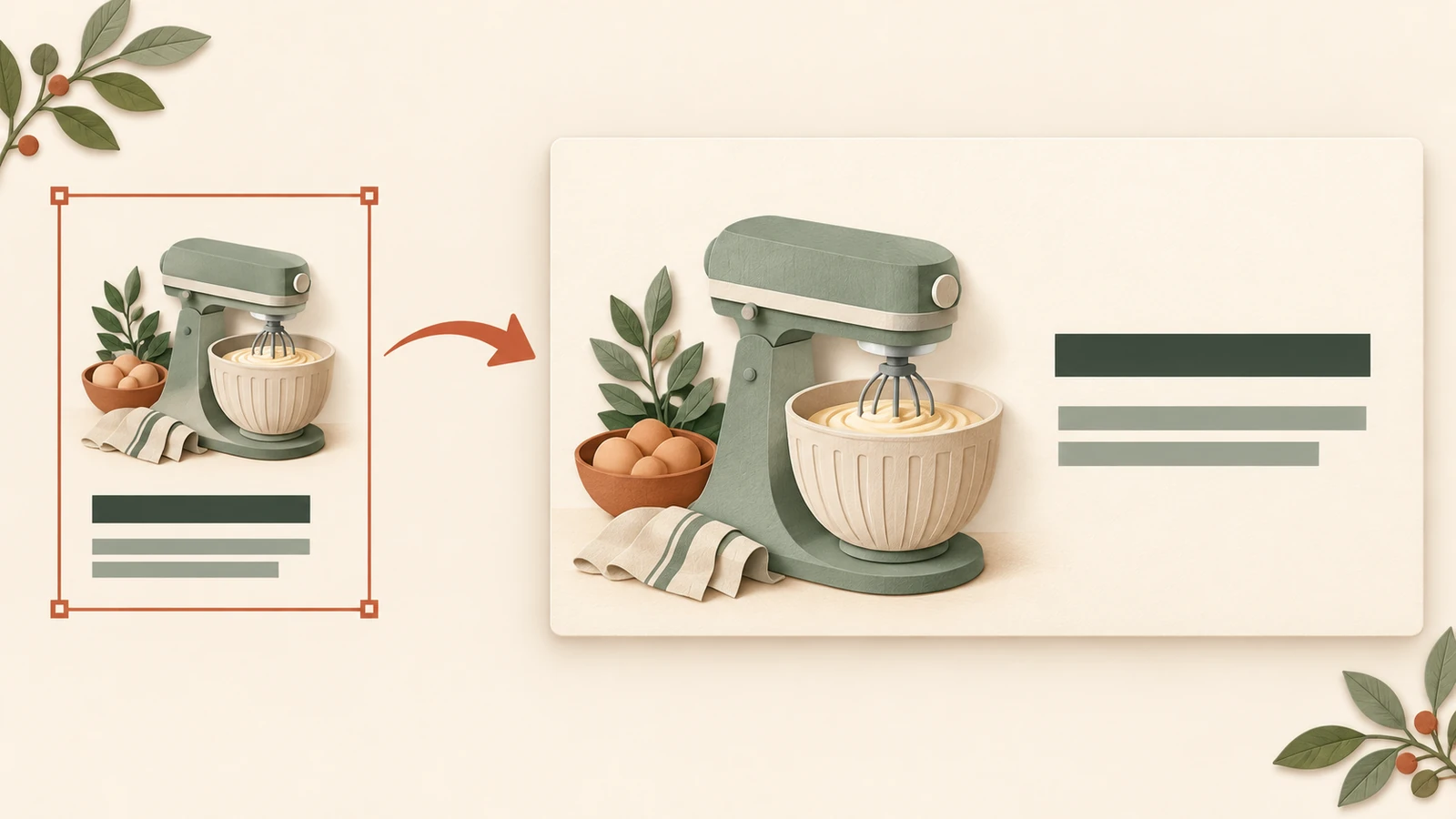
Names such as “01 Ingredients” and “02 Dough” make the groups easier to locate. See the Selection Pane and grouping guide for working with a crowded converted page.
The five-slide example: larger pictures and room for text
We took the five step pictures and their corresponding text from the converted file and arranged them as five explanation slides. Each page has one independent picture and editable text boxes for its step number, heading and description. The five pictures retain their original image data from the conversion; the new layout places picture and text side by side on a light cream background.
The three images below were exported from the example opened in PowerPoint. The final slide has a longer two-line description, set at the same font size as the other slides.



Download the five-slide editable PPTX (about 5 MB). It keeps the original Chinese content. Try editing the first heading and moving its picture, then save and reopen the file.
Turn your own step-by-step image into editable slides
Check the new slides before presenting
Text: Compare step names and descriptions with the original, especially where several small text boxes sit next to each other. When adding words, widen the box or break up the text before reducing the font size.
Pictures: Resize proportionally and inspect edges and details. If a small extracted image looks soft when enlarged, use it at a smaller size or return to a higher-resolution source.
Background: Check whether you copied a full-page background, an arrow spanning several steps or an unwanted decoration. If you retain the original background and remove other steps, inspect the exposed areas for old text or artwork. A plain background is often easier to arrange.
Sequence: Present from the beginning. Check the step order, heading positions and text wrapping. Use the editability checklist for a broader review of the downloaded file.
Common questions
Do I need element separation just to enlarge part of an image?
For a close-up, you can duplicate the original picture and crop to the area you want to show. Separate text boxes and pictures are useful when you also need to edit the words, move individual artwork or give the description a different layout.
What if I want to explain the steps without changing slides?
Keep the overview and group each step’s picture and text, then add an animation to each group. Follow the individual-element animation guide to emphasize or reveal the steps as you speak.
Can I use my company’s PowerPoint template?
Yes. Create a blank slide or a suitable layout in the destination template, paste the separated objects, and match the heading, font sizes and colors to the template. If you also need a new product picture, follow the picture replacement guide.