Translate image-based slides into English or a bilingual deck

To translate an image-based PowerPoint, first turn the words in the picture into editable text boxes. Convert the source image or PDF to PPTX, then replace the text with a checked translation. For a bilingual version, keep the original language and give the translation its own line. Full-element conversion is useful when you also need to resize label backgrounds or move separate artwork.
This guide uses a recent bicycle-parts conversion case to build an English slide and a Chinese–English version. 2pptx handles the image-to-editable-PPT conversion; translation, terminology checks and layout changes follow in PowerPoint. A three-slide practice file is available below.
Upload an image or PDF to separate its text and artwork
Make the words in the image selectable
Double-click a label in the existing presentation. If a text cursor appears, you can edit it directly. If clicking selects the whole page as one picture, convert that page first. Export the relevant slides from an image-based PPTX as clear images or a PDF; use the original high-resolution images when available.
Upload the file to 2pptx and choose the mode for the changes you need. For text replacement alone, choose normal or premium clean conversion according to the background. Choose Full-element editable PPT when labels, illustrations or their backgrounds also need to move or resize. Review the pages and price, submit, then download the PPTX. See the image-to-PPT text and element separation guide for the full conversion steps.

The five names, the heading and the line at the bottom need separate attention. Save a copy in the source language, then duplicate the slide for the English version. Keep the source page beside it while checking which picture each label describes.
Locate the text in the actual separated slide

The screenshot shows separate selection boxes for names, colored label backgrounds and several surrounding pictures. Text can be replaced in the downloaded file, while the separated visual elements remain picture objects. Select the text box to change a white label; select the image underneath it to enlarge the green or orange backing.
Check the source wording against the original before translating, especially headings, terms and short descriptions. The original closing line was awkward, so the practice file first rewrites it in natural Chinese before preparing the English sentence, “Parts work together for a smooth ride.” This also provides a chance to correct recognition errors.
Keep each part name consistent across labels, headings and speaker notes. The example uses these terms:
| Chinese | English used here | Picture reference |
|---|---|---|
| 车座 | Saddle | Brown saddle, upper left |
| 车把 | Handlebar | Handlebar detail, upper right |
| 车轮 | Wheel | Wheel and spokes on the left |
| 刹车 | Brake | Front brake detail on the right |
| 传动 | Drivetrain | Chain and gears, lower left |
Replace the text and resize its label background
These steps use desktop PowerPoint for Windows. Double-click a text box, select its text and enter the checked translation. In versions that support it, Review → Translate can provide a translation for selected text. Check the terminology and meaning before inserting it; menu wording can vary by version, so try one label first.
- Replace the heading and short labels first, then work on the description at the bottom. Finish one group at a time to keep names matched to pictures.
- Widen a text box when the English needs more room. Handlebar and Drivetrain take more horizontal space than their two-character Chinese labels.
- Select and enlarge the colored label background separately. Place it below the text and above the end of the leader line.
- Use consistent fonts and sizes for labels at the same level. Check spelling, wrapping and padding; the page heading can use a larger size.
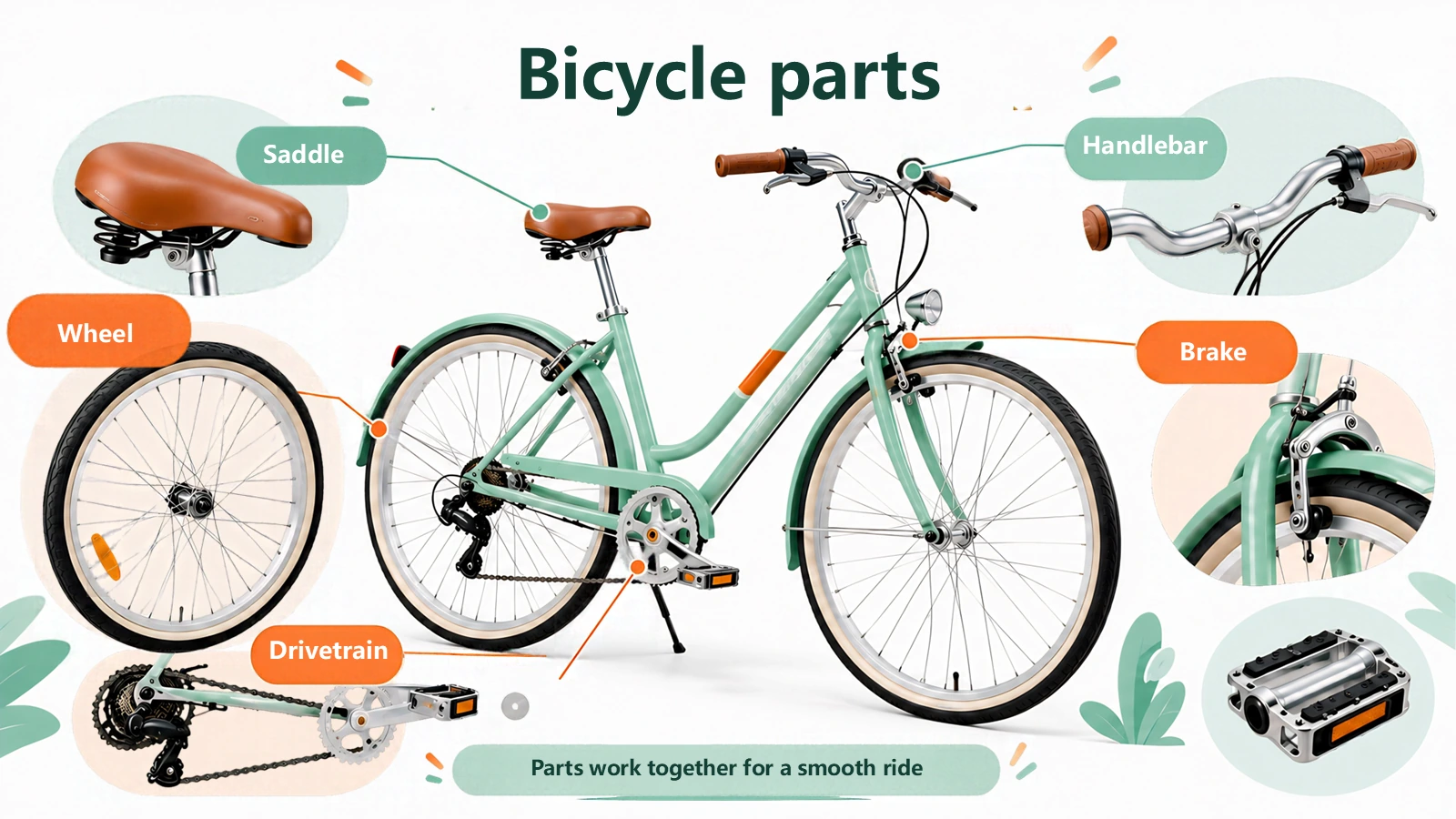
If you keep selecting the colored backing instead of the words, use the Selection Pane and object organization guide to find the text box. Once the label fits, group its text and background so they are easier to move together.
Give each language its own line
A bilingual slide can help with teaching, training or side-by-side reading. Use the same order throughout: Chinese above, English below. Keep the part name on the diagram; longer explanations can go in speaker notes or a separate slide.
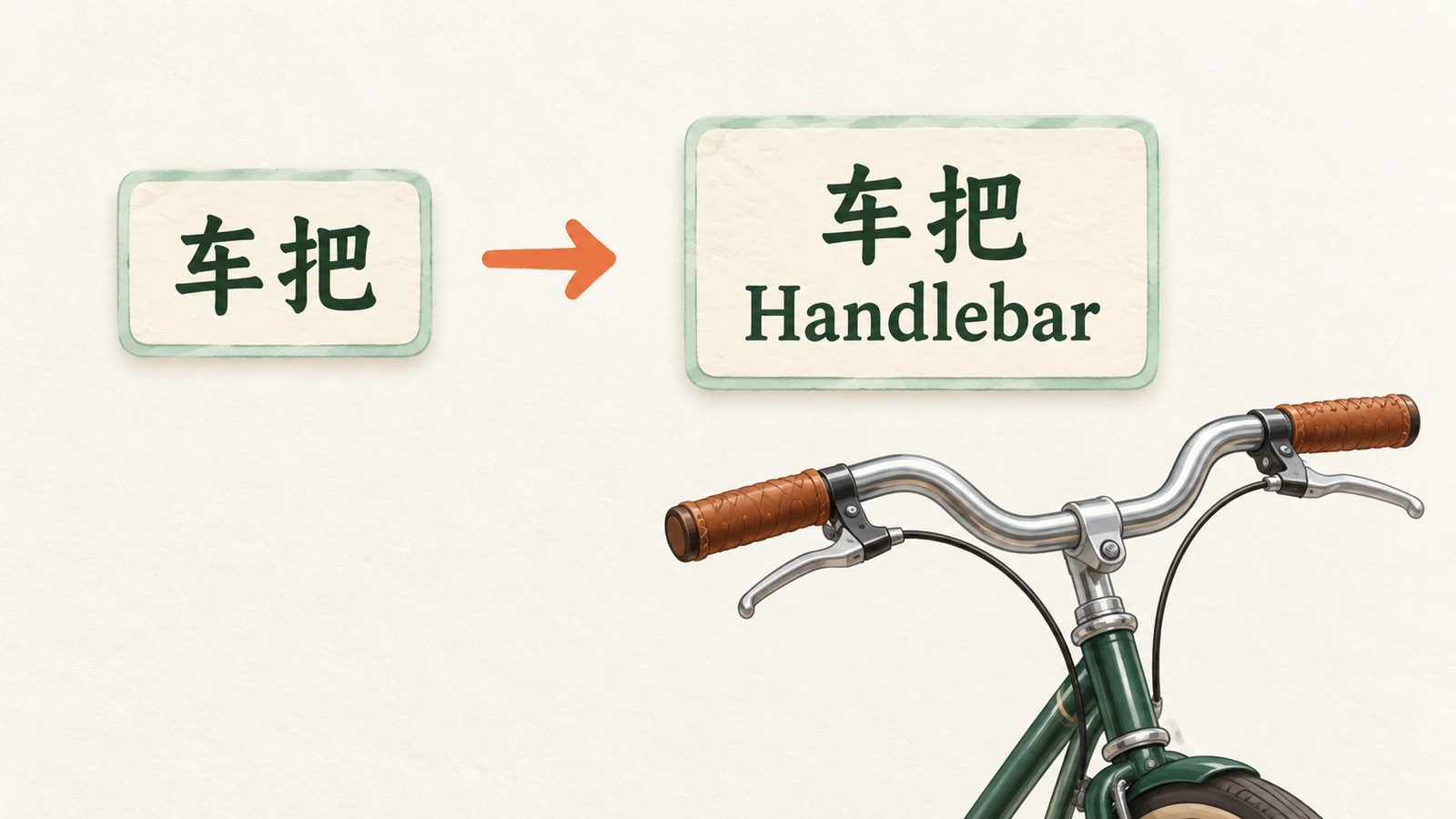
In this example, each Chinese name and its English equivalent has a separate text box, and the colored backing is enlarged. Chinese is slightly larger than English, with consistent sizes across all five labels. The heading also uses two lines; the bottom description is shortened to keep space around the bicycle.
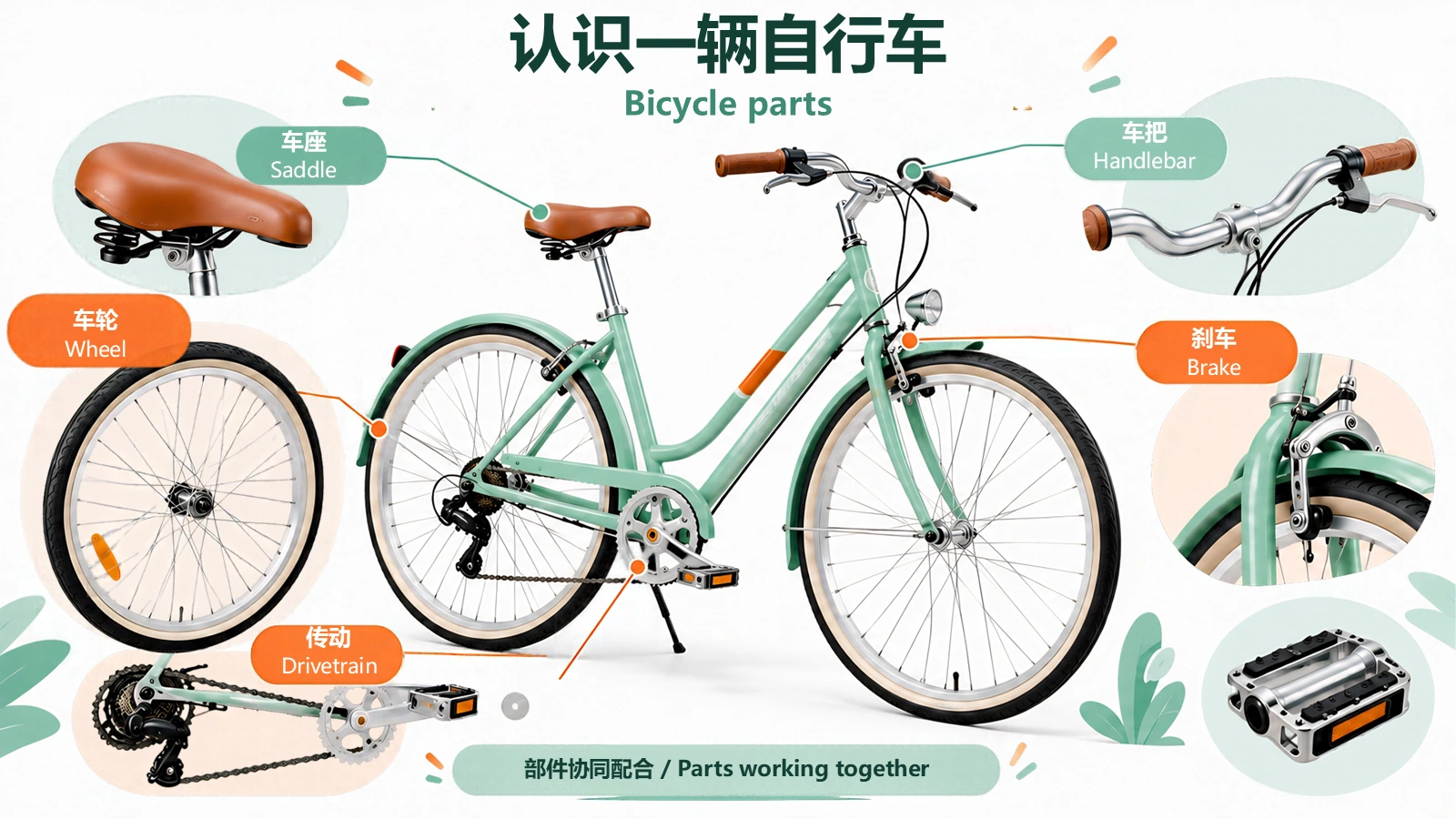
Choose a reading order before adjusting spacing. For moving entire groups or making more room, see the guide to rearranging image-based slides. A dense diagram can also be split across several explanation slides.
Download the practice deck, edit and reopen it

Download the three-slide Chinese, English and bilingual PPTX (about 11 MB). Each slide reuses the same 30 image assets from the real conversion, with text arranged for this exercise. The Chinese and English slides each contain 7 text boxes; the bilingual slide contains 13.
All three slides were opened and exported in PowerPoint for inspection. A separate test copy was also saved and reopened after changing the title and moving the saddle detail picture. Try editing Saddle on slide 2, then adjust its text-box width and check the colored background and leader line.
Before sharing, read the deck at presentation size. Check terminology, numbers, units, clipped words and the order of the two languages. Confirm the fonts again on the computer used to present it. The editable-PPT check guide covers further delivery checks.
Convert your image slide, then prepare its language versions
Questions during editing
What if some slides already have editable text?
Keep those slides and replace their text directly. Export and convert only the pages whose words are part of an image, then bring the converted pages back into the working deck. Finish by matching fonts and layout.
What if the translation is too long for a label?
Check whether a shorter, standard term expresses the same meaning, then enlarge the text box and backing. Keep the name on the diagram and move a full explanation into the body, notes or another slide. Review it at the size the audience will see.
How can I keep translations consistent across pages?
Build a short glossary of product names, parts and abbreviations first. Apply those terms while translating each slide, then use PowerPoint’s Find command to check their occurrences throughout the deck.