PDF to PowerPoint still one image? Edit the text and pictures

You converted a PDF to PowerPoint, but dragging the title moves the whole slide. If the slide contains only one full-page picture, the conversion preserved the page as an image without rebuilding its words as text boxes. To edit the text, you need text recognition and text-box reconstruction. To move or replace pictures separately, you also need to separate the visual elements.
Check the objects in the converted PPTX first. Then choose whether to process the original PDF, an image-based PPTX, or selected slide images. This lets you keep the pages that are already editable.
Upload an image or PDF for editable PowerPoint
Why does a PDF-to-PPT conversion leave one image per slide?
A PDF page may contain text, vector artwork, and photos, or it may hold a single scan or exported slide image. If a converter renders the entire page as a picture and places it in a PPTX, the extension changes while the page still has only that picture. An image-based source, an image-output setting, or a conversion that flattens the page can all produce this result.
Searchable PDFs can be confusing here. A scanned page may have an additional OCR text layer that lets you search or copy words. That proves text can be extracted from the PDF; you still need to check whether the converted PowerPoint contains text boxes.
To check the converted file, place the cursor inside a heading and change a word. If you also need visual edits, select one illustration separately. These actions show which text and picture objects you can work with.
Use the Selection Pane to identify pictures, groups, and backgrounds
In desktop PowerPoint for Windows, duplicate the slide before checking it. Open Home → Select → Selection Pane, or press Alt + F10. In other versions, use the command search to find “Selection Pane.”
- Select the heading. If you can place a text cursor inside it, edit the existing text. If the selection border surrounds the entire page, inspect the pane.
- Inspect the object list. Expand any group to look for existing text boxes and pictures. Select an individual object within the group, or ungroup it to work on its parts.
- Temporarily hide the full-slide picture. If the heading, body copy, and artwork disappear together, with no corresponding text objects in the list, that content is part of the picture. Restore its visibility afterward.
| What you find | Next step |
|---|---|
| A text cursor appears in the heading | Edit and retain the existing text box. |
| A group contains several objects | Select its children or ungroup it, then check text and pictures separately. |
| One full-slide picture contains all the content | Prepare a source file and rebuild the text; separate visual elements if needed. |
| Visible content is missing from the regular object list | Check Design → Format Background and View → Slide Master for background or layout content. |
If editing is unavailable throughout the file, check access and view settings using the PowerPoint text editing troubleshooting guide before treating it as an image-slide problem. Menu guidance follows Microsoft Support’s Selection Pane and object-grouping documentation.
Which file should you convert again?
If you still have the original editable presentation, edit that file first. Otherwise, use the clearest original PDF or slide export available. Repeated screenshots and compression can make small text harder to read.
You have the original PDF: upload it directly
2pptx accepts PDFs directly, so you can skip the intermediate image-based PPTX and individual screenshots. Prepare a file containing only the pages you want to process. For an initial check, choose a representative page with dense text and a complex background. See the image PDF to editable PPT guide for a comparison of processing methods.
You only have an image-based PPTX: check its structure
2pptx’s image-based PPTX import requires one full-slide picture per slide. Mixed pages containing native text boxes, shapes, charts, or multiple pictures are rejected before upload. Save older .ppt files as .pptx first. Hidden slides are included in processing, so check the page count before submission.
Your file mixes editable slides and picture slides: process the picture slides
Keep the original presentation. Copy the full-slide picture pages that need conversion into a separate file, check the import conditions above, and upload it. If a target slide already mixes editable objects with an image, retain those objects and extract just the picture that needs recognition. When the entire target page needs rebuilding, export that page as PDF or a clear PNG/JPG.
After conversion, copy the new slides back into the original deck to replace their image-based counterparts. Check that both presentations use the same slide size, then inspect page order, proportions, fonts, and theme colors. Keep the original editable pages in place.
With separate PNG or JPG files, select the images in the upload area, arrange their order, and merge them into one PPTX. See converting multiple screenshots to editable PowerPoint for the steps.
Choose a mode for the edits you need
| Editing task and mode | Work in the downloaded file |
|---|---|
| Text on a simple background: Standard | Edit the rebuilt text boxes, font sizes, and line breaks. |
| Text over gradients, textures, or photos: Premium clean | Edit text and inspect the repaired background beneath the old words. |
| Text plus pictures to move or replace: Full-element | Adjust text and separated picture objects individually. |
Standard and Premium clean primarily restore text editing, with other content usually remaining in the background image. Full-element also separates visual content, generally into transparent pictures that you can move, resize, or replace. For editable chart data, vector paths, or animation, use the original assets or rebuild those objects in PowerPoint.
- Open the 2pptx upload area, select a mode for your editing needs, and choose the prepared file.
- Review the file requirements, page count, and charges before submitting. Check pricing and packages and the submission screen for current quotas and paid features.
- When processing finishes, download the PPTX from the result page and keep the retrieval code.
- Open the file in PowerPoint or another PPTX editor. Complete one actual edit before working through the remaining pages.
For a small trial, prepare a file containing only the representative page. Use the online preview to inspect the result; change text, move pictures, and save your working copy in the downloaded PPTX.
A real result: inspect separate text and artwork regions
The screenshot below is an actual Full-element result supplied by a user, reused from our published case study. Selection outlines surround the heading, side annotations, central layered artwork, and bottom caption bar. The original Chinese slide content is retained.
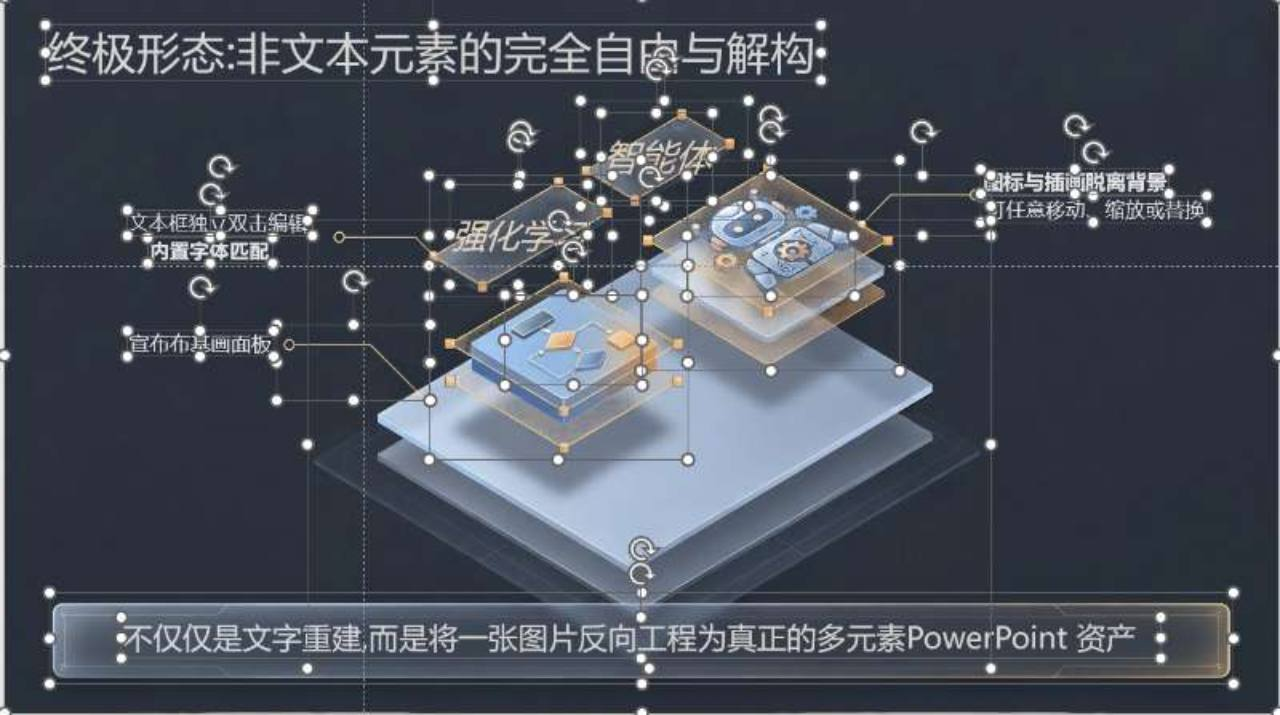
Start by locating the heading and side annotations to change their wording. Then select a part of the illustration and check what moves with it. One visual region may contain several objects; select and group the relevant parts when you need to move them together. See two real examples of complex slide separation for a closer look.
Check text and picture separation with your own slide
Check your own file before handing it over
- Make a real text change. Replace a date or heading. Check numbers, punctuation, names, and text-box height after the line breaks change.
- Select the picture you need to change. In Full-element output, move it slightly and undo to check its relationship with nearby text. For replacement pictures, also check cropping and proportions.
- Inspect the old position. After changing words or moving an object, zoom in on old lettering, shadows, fine lines, and transparent edges. Follow the background inspection steps if marks remain.
- Reopen the saved file. Save a separate PPTX, close and reopen it, then check page order, fonts, overlaps, and slideshow appearance.
Common questions
Can I simply ungroup a full-slide picture?
Ungroup works on groups of existing objects. In a PNG or JPG, the words and artwork are pixels within one image. Text recognition and visual separation create the objects you can adjust individually.
Do I need to convert the whole slide to change one number?
On a solid background, you can cover the old number on a duplicate slide and insert a text box, checking size, color, and alignment. Over a texture or illustration, repair the background first. Rebuilding the page’s text boxes becomes more useful for repeated edits or several pages.
Can it reproduce every font, position, and weight exactly?
An image stores the appearance of the words; the original font files and paragraph settings may be lost. Check substituted fonts, spacing, and wrapping after reconstruction. When exact matching matters, ask the original author for the editable source and required fonts.
Does this also apply to NotebookLM or other AI slide exports?
If the page in your current file is a flat image, the same object checks, file preparation, and mode selection apply. For the NotebookLM workflow, see NotebookLM slides to editable PowerPoint.